How to Automatically Add or Update Contacts in WATI from HelloLeads CRM
Automatic Contact Synchronization Between HelloLeads CRM and WATI:
Seamlessly sync your lead data with WATI's WhatsApp platform. When you add or update a lead in HelloLeads CRM, their contact information is automatically created or updated in WATI, enabling instant WhatsApp communication and advanced automation based on profile details, address, qualifiers and lead stages.
What is Contact Sync in WATI?
The "Add/Update Contact in WATI" feature automatically synchronizes your HelloLeads CRM contacts with your WATI account. Once configured, every time a lead is added or updated in HelloLeads CRM, the system will:
- Create new contacts in WATI when new leads are added to HelloLeads CRM
- Update existing contacts in WATI when lead information changes in HelloLeads CRM
- Sync lead field data including lead profile details like designation, address details like state, city and qualifiers like lead stage.
- Enable triggers and automation in WATI based on lead status changes
This integration enables you to create highly targeted WhatsApp automation by using lead data such as designation, interests, or other key attributes.
It helps you deliver more personalized and relevant communication by triggering messages based on specific lead conditions.
Benefits of Automatic Contact Sync:
Save Time
Eliminate manual contact entry in WATI. Contacts are automatically synced from HelloLeads CRM.
Real-Time Updates
Any changes to lead data in HelloLeads are instantly reflected in WATI.
Advanced Automation
Trigger WhatsApp campaigns based on lead stage changes, or potential values.
Data Accuracy
Reduce errors with automatic synchronization ensuring consistency across platforms.
How to Set Up Automatic Contact Sync:
Step 1: Configure Your WATI Integration
First, ensure you have configured your WATI Secret Key and Client ID in HelloLeads CRM. If you haven't done this yet, navigate to the integrations section and complete the WATI setup.
Step 2: Access the Contact Sync Feature
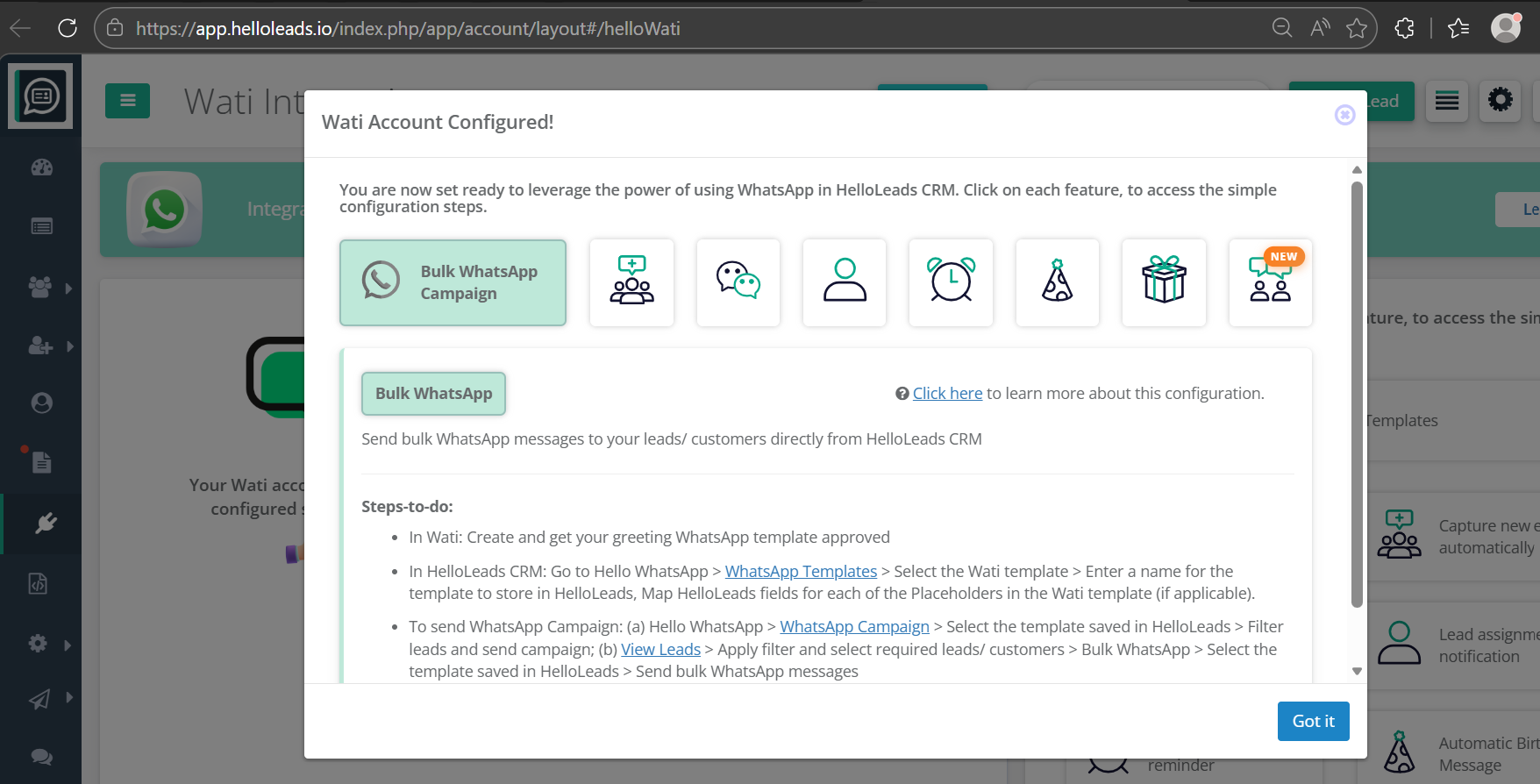
Once your WATI account is configured, you'll see the "Add/update contact in WATI" feature card with a NEW badge. Click on this card to access the configuration settings.
Step 3: Enable Automatic Contact Sync
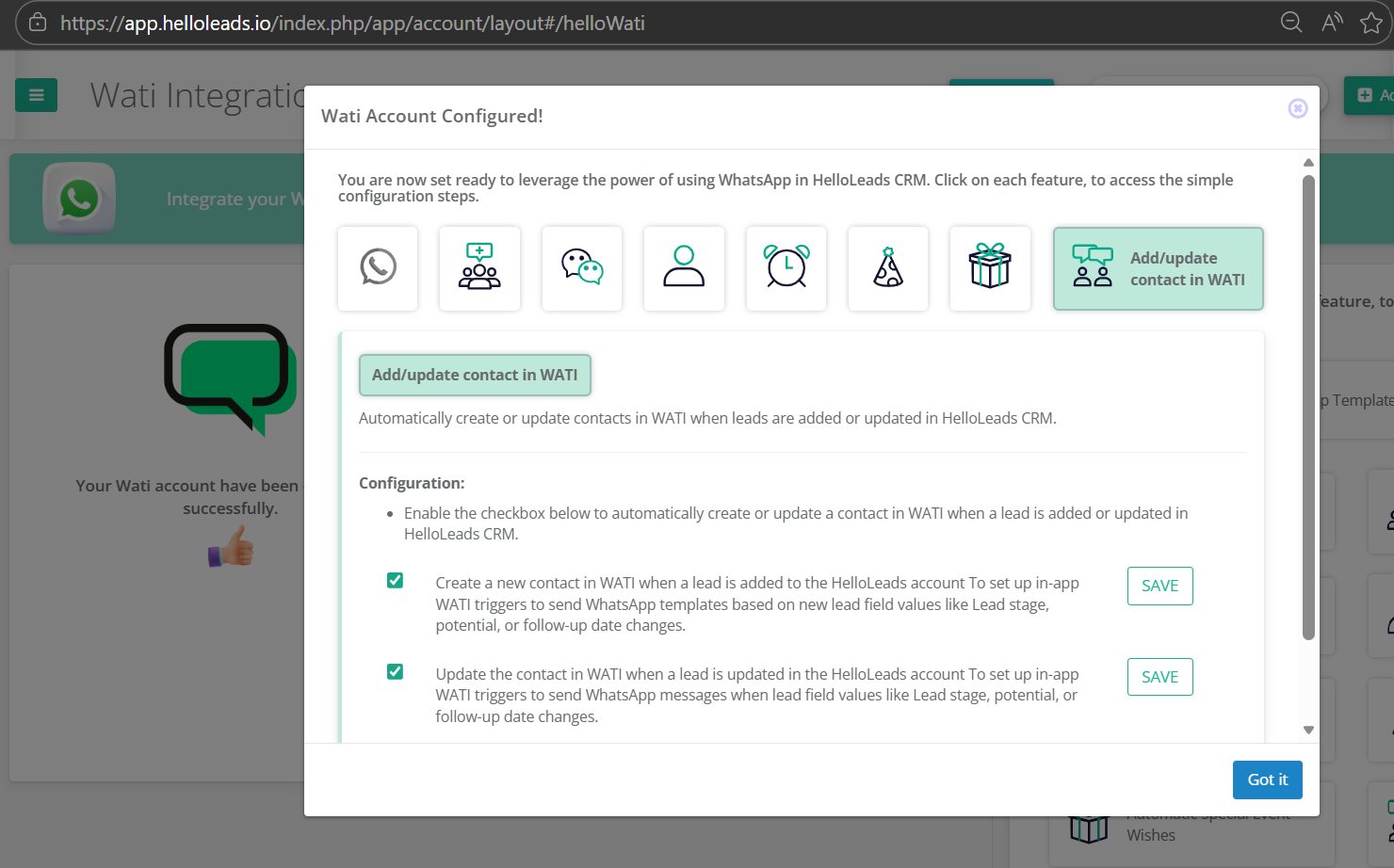
In the configuration popup, you'll see the option to "Automatically create or update a contact in WATI when a lead is added or updated in HelloLeads CRM."
To enable this feature:
- Check the checkbox to enable automatic contact synchronization
- This will allow the system to create new contacts in WATI for new leads
- It will also update existing WATI contacts when lead data changes in HelloLeads CRM
Step 4: Configure In-App WATI Triggers
Below the main checkbox, you'll see an option to "Enable the checkbox below to automatically create or update a contact in WATI..." This section allows you to set up specific triggers based on lead field changes.
Enable this checkbox to set up automatic WATI contact updates based on these lead field changes:
- Lead Stage Changes: Automatically update WATI contacts when a lead moves through different stages (e.g., New Lead → Qualified → Proposal → Won)
- Potential Value Updates: Sync potential deal values to WATI for better customer segmentation
- Custom Field Updates: Sync any custom fields you've created in HelloLeads CRM
Step 5: Save Your Configuration
After enabling all desired options, click the "Save" button to save your configuration. Your automatic contact sync is now active!
Use Cases for Contact Sync:
Sales Pipeline Automation
Automatically send different WhatsApp messages based on where a lead is in your sales pipeline. Move a lead to "Proposal Sent" stage.
High-Value Lead Prioritization
When a lead's potential value exceeds a certain threshold, trigger special WhatsApp campaigns or notifications to your sales team.
Customer Journey Tracking
Maintain complete customer journey data in WATI, enabling sophisticated segmentation and targeted messaging campaigns.
Best Practices:
Pro Tips for Maximum Efficiency
- Ensure phone numbers in HelloLeads CRM are in proper international format (with country code)
- Use consistent lead stage naming for better WATI automation setup
- Regularly review your WATI automation rules to align with your HelloLeads CRM workflow
- Monitor your WATI contact list to ensure proper synchronization
Troubleshooting:
You're all set! Your HelloLeads CRM contacts will now automatically sync to WATI, enabling powerful WhatsApp automation based on your lead lifecycle, stages, and field changes. Focus on closing deals while the integration handles the data synchronization!