Leads Management Interface
What is the Leads Management Page?
The Leads Management page is your central hub for viewing, organizing, and managing all your leads and customers in HelloLeads CRM. Here you can see all the people who have shown interest in your business, contacted you, or have been added to your system from various sources like your website, social media, or manual entry.
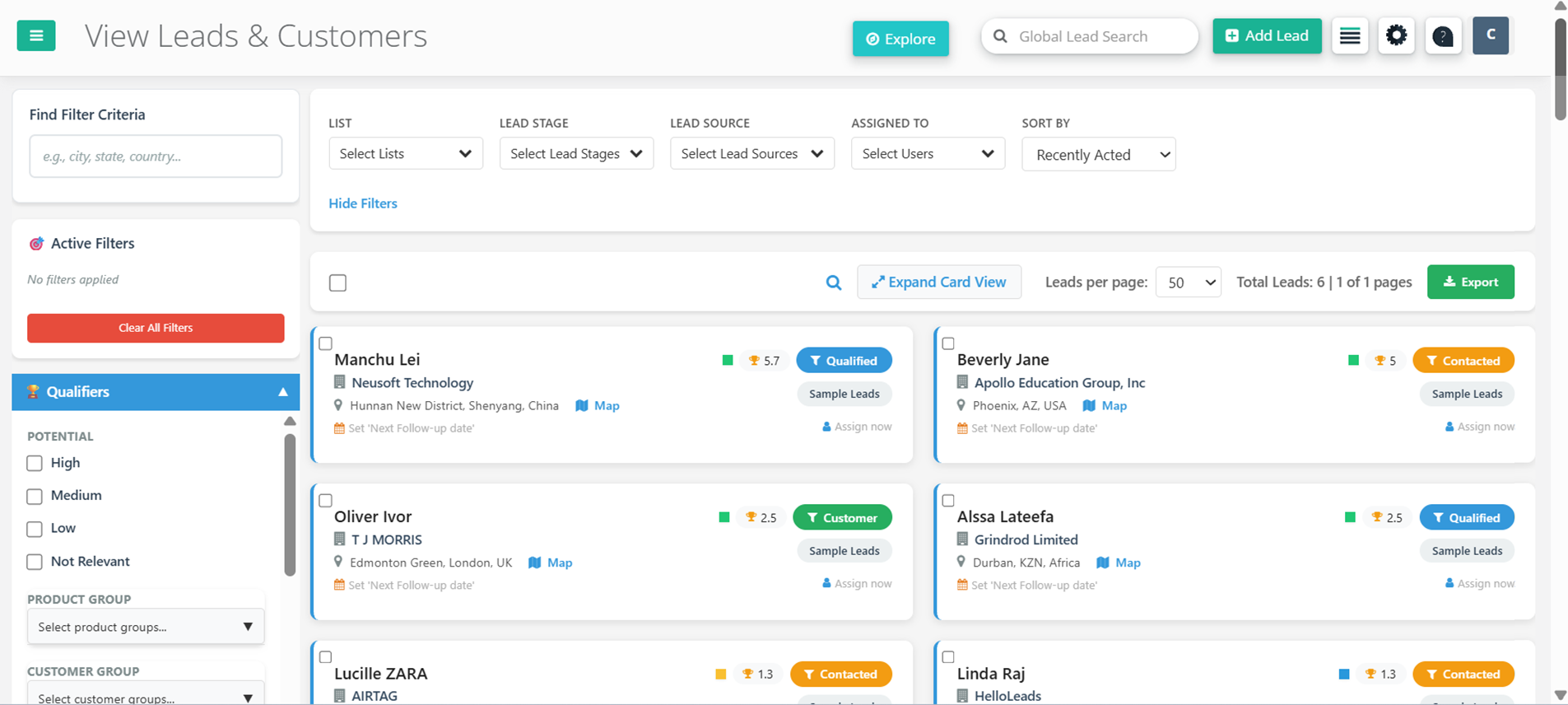
Key Improvements in the New Interface
Old vs New Interface Comparison
Previous Interface
- Filters hidden behind "Advanced Filter" button
- Traditional table-only layout
- Limited multiple selection options
- Manual refresh needed for updates
- Desktop-focused design
- Basic search functionality
- Fixed column layout
New Interface
- Always-visible left sidebar with all filters
- Modern card-based layout for better readability
- Enhanced multiple selection with visual feedback
- Real-time automatic updates as you filter
- Fully responsive design for all devices
- Advanced search across all fields with instant results
- Comprehensive bulk operations toolbar
- Multi-select filters in organized categories
- Expandable filter sections for better organization
Navigating the New Interface
1. Left Sidebar Filters (Always Available)
The most significant change is the persistent left sidebar that contains all filtering options. Unlike the old interface where you had to click "Advanced Filters" to access these options, they are now always visible and accessible:
Filter Search Section
At the top of the left sidebar, you'll find a powerful search functionality:
- Smart Search: Search across all lead fields including name, email, phone, company, and custom fields
- Real-time Results: See filtered results instantly as you type
- Clear Function: Easy-to-use clear button to reset your search
- Results Counter: See how many leads match your current search and filters
Available Filter Categories
The left sidebar organizes all filters into expandable sections. Here's a comprehensive guide to find any specific filter:
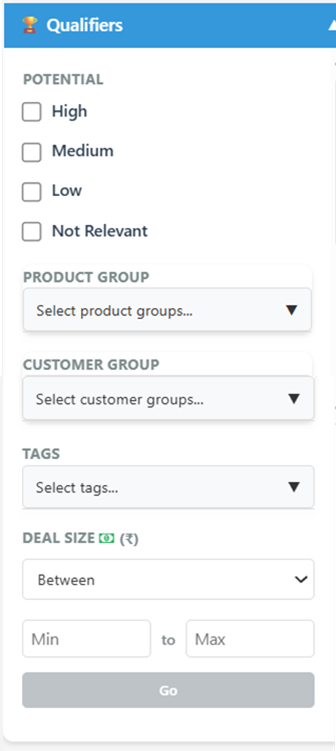
🏆 Qualifiers
- Potential: High, Medium, Low, Not Relevant
- Product Group: Select from your created product groups + Unassigned option
- Customer Group: Select from your created customer groups + Unassigned option
- Tags: All custom tags you've created for leads
- Deal Size: Filter by monetary value with operators (Between, Greater than, Less than, Equal, Is empty, Is not empty)
🛠️ Custom Fields
- Custom Field Selection: Choose from all your custom fields
- Filter Conditions: Contains, Equals, Greater than, Less than, Between, Is empty, Is not empty
- Value Input: Single value or range input based on condition
- Multiple Filters: Add multiple custom field filters simultaneously
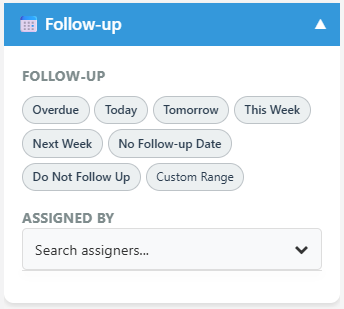
📅 Follow-up
- Follow-up Date: Overdue, Today, Tomorrow, This Week, Next Week, No Follow-up Date, Do Not Follow Up, Custom Range
- Assigned By: Filter by who assigned the follow-up task
- Custom Date Range: Set specific from/to dates for follow-up filtering
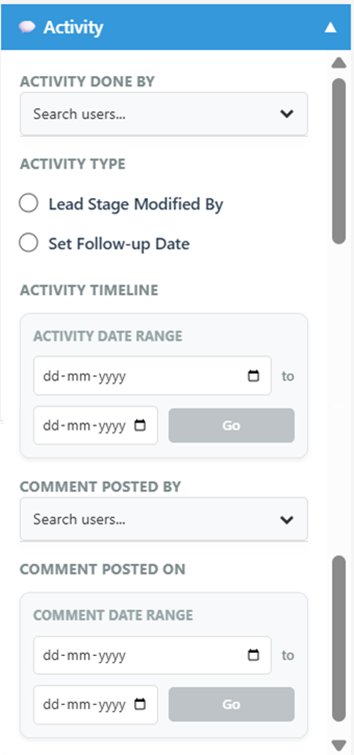
💬 Activity
- Activity Done By: Filter by team members who performed activities
- Activity Type: Lead Stage Modified, Follow-up date set
- Activity Date Range: Filter activities by date ranges
- Last Activity: When the lead was last contacted
📋 Lead History
- Captured By: Filter by who originally captured/added the lead
- Lead Age/Created Date: Custom date ranges for when leads were created
🏢 Organization & Location
- Organization/Company: Filter by company names
- Title/Designation: Job titles and positions
- Country: All countries where your leads are located
- State/Province: Filter by state or province
- City: Filter by specific cities
- Zip Code: Filter by postal/zip codes
💡 Bulk Update
- Bulk Actions: Access bulk assignment, email, SMS, WhatsApp operations
- Sheet View: Spreadsheet-style bulk editing interface
- Move Leads: Transfer leads between lists
- Bulk Delete: Remove multiple leads at once
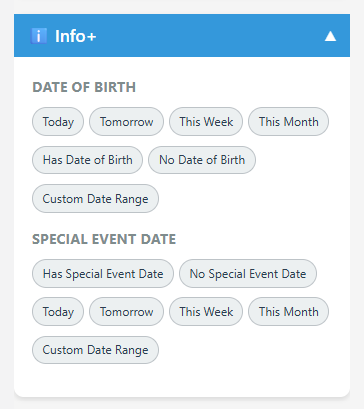
ℹ️ Info+
- Date of Birth: Filter leads by DOB ranges
- Event Date: Filter by specific event dates
🔧 Others
- Email Status: Subscribed or Unsubscribed (This is where you find the "Unsubscribed" filter!)
- Lock Status: Locked Leads or Unlocked Leads (when lead locking feature is enabled)
2. Card View Layout
Another major change is the shift from the traditional table layout to a modern card-based interface:
Card View Benefits:
- Better Information Display: Each lead's information is clearly organized in its own card
- Mobile Responsive: Cards adapt perfectly to different screen sizes
- Quick Actions: Action buttons are prominently displayed on each card
- Visual Hierarchy: Important information like name, company, and contact details are prominently featured
- Status Indicators: Lead stage, score, and other status information are visually distinct
3. Multiple Selection Capabilities
The new interface maintains and enhances the multiple selection functionality from the old interface:
- Individual Selection: Click checkboxes on individual lead cards
- Select All: Choose all leads matching your current filters with one click
- Range Selection: Select multiple consecutive leads by holding Shift
- Visual Feedback: Selected cards are clearly highlighted
- Selection Counter: See exactly how many leads you have selected
2. Filter Controls
- Show/Hide Filters: Click the filter button to show or hide the entire filter panel for more screen space
- Date Range: Set specific date ranges for lead creation or activity
- Sort Options: Choose how to order your leads (newest first, by name, etc.)
3. Bulk Actions Toolbar
When you select multiple leads (by checking the boxes), a powerful toolbar appears:
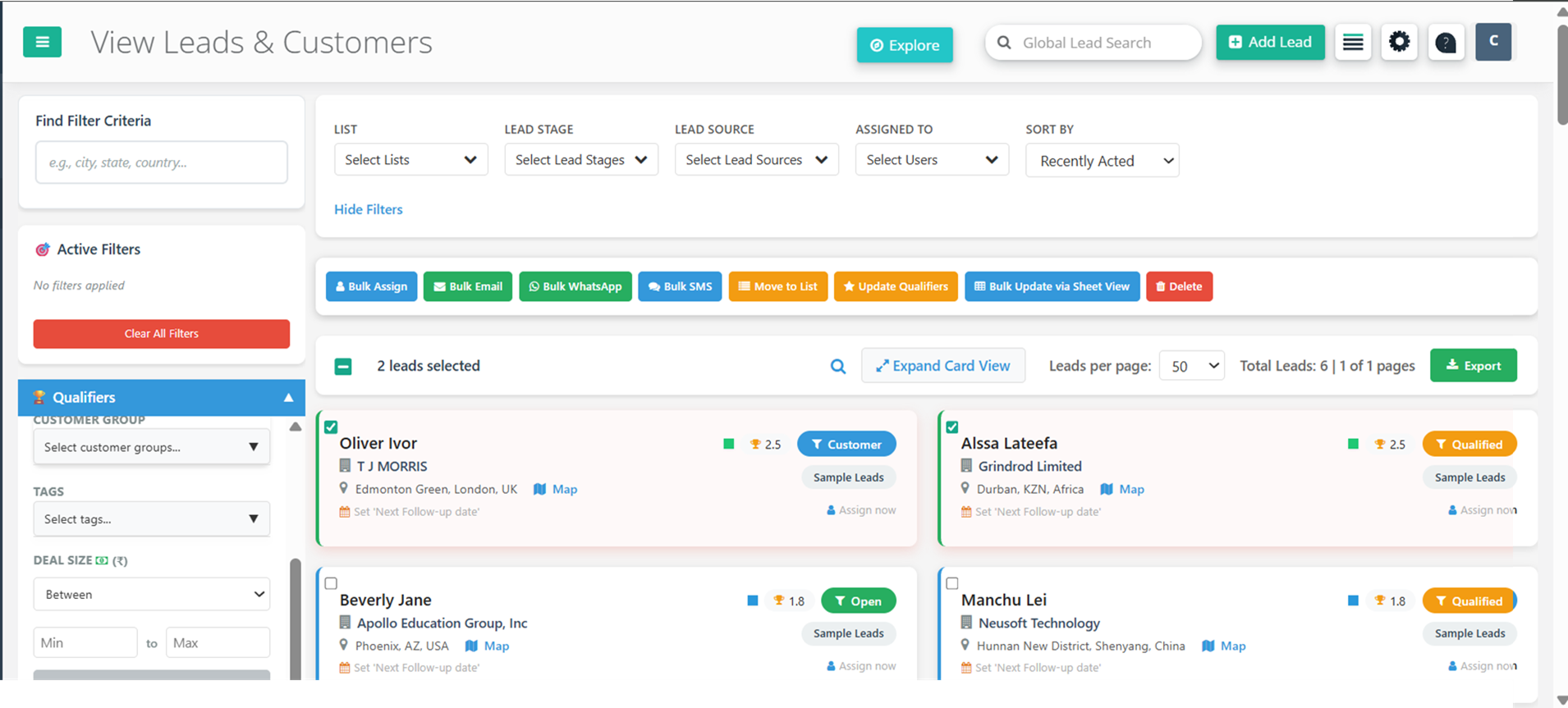
- Bulk Assign: Assign selected leads to team members
- Bulk Email: Send emails to multiple leads at once
- Bulk SMS: Send text messages to selected leads
- Bulk WhatsApp: Send WhatsApp messages to multiple leads
- Move Leads: Transfer leads to different lists
- Bulk Update Qualifiers: Update lead stages, potential, or customer groups
- Bulk Update via Sheet: Edit multiple leads in a spreadsheet-like interface
- Delete: Remove selected leads from your system
Key Features and How to Use Them
Real-time Filtering
How it works: As soon as you select or deselect filter options, the results update automatically without needing to click a "search" button.
Multi-select Capabilities
How to use:
- Click on any filter dropdown (Lists, Stages, Users, etc.)
- Check multiple options - you can select as many as needed
- Results will show leads matching ANY of your selected criteria
- Use the "Select All" option to choose everything in a category
Bulk Operations
Step-by-step process:
- Select leads by checking the boxes next to their names
- The bulk actions toolbar will appear at the top
- Choose your desired action (Email, SMS, Assign, etc.)
- Follow the prompts to complete the action
- Use "Select All" to choose all leads matching your current filters
Sheet View for Bulk Updates
What it is: A spreadsheet-like interface that allows you to edit multiple leads' information simultaneously, similar to Excel.
How to access:
- Select the leads you want to edit
- Click "Bulk Update via Sheet View" button
- Edit lead information directly in the grid
- Save changes to update all selected leads at once
Benefits of the New Interface
- Increased Productivity: Manage multiple leads simultaneously instead of handling them one by one
- Better Organization: Advanced filtering helps you find exactly the leads you need quickly
- Time Savings: Real-time updates eliminate waiting for page refreshes and searches
- Improved User Experience: Intuitive design reduces learning curve and improves daily workflow
- Enhanced Collaboration: Bulk assignment features make team management more efficient
- Better Data Visibility: Customizable columns and sticky headers keep important information in view
- Mobile Friendly: Responsive design allows lead management on any device
- Scalability: Handle thousands of leads efficiently with improved performance
Getting Started - Quick Guide
For New Users
- Start by exploring the filter panel at the top
- Try selecting different lists to see how leads are organized
- Practice using the search box to find specific leads
- Select a few leads and explore the bulk actions toolbar
- Customize your columns using "Manage Columns" to see relevant information
For Users Transitioning from Old Interface
- Where are my "Advanced Filters"? They're now permanently visible in the left sidebar - no need to click a button to access them!
- Where's the table view? The new interface uses a card-based layout that's more readable and mobile-friendly
- How do I search? Use the search box at the top of the left sidebar - it searches across all fields instantly
- Where are bulk actions? Select leads first using checkboxes, then the bulk actions toolbar appears at the top
- Can I still select multiple leads? Yes! Even better than before - use individual checkboxes, select all, or range selection
- How do I filter by multiple criteria? Each filter section allows multiple selections - just check multiple options in any category
- Where's the export? In the bulk actions toolbar after selecting leads, or in the main actions menu
- Can I hide the sidebar? The sidebar is optimized to be always visible, but on smaller screens it becomes collapsible
Tips for Maximum Efficiency
Pro Tips
- Use multiple filters together for precise targeting
- Hide filters when working with the table for more space
- Use "Select All" for bulk operations across all filtered results
- Customize columns to show only relevant information