Bulk Update via Sheet View
Bulk Update via Sheet View lets you quickly change details for multiple leads in a familiar sheet format, saving you time and effort. No technical skills required—just point, click, and edit!
Key Features
Spreadsheet-Style Editing
Edit lead details in a table, just like Excel or Google Sheets.
Inline Cell Editing
Click any cell to update lead information instantly.
Bulk Selection & Update
Select multiple leads and update them all together.
Sort
Organize your leads quickly by sorting columns.
One-Click Save
Save all your changes with a
single button.
Undo Edits
Easily undo changes before saving if needed.
How to Use
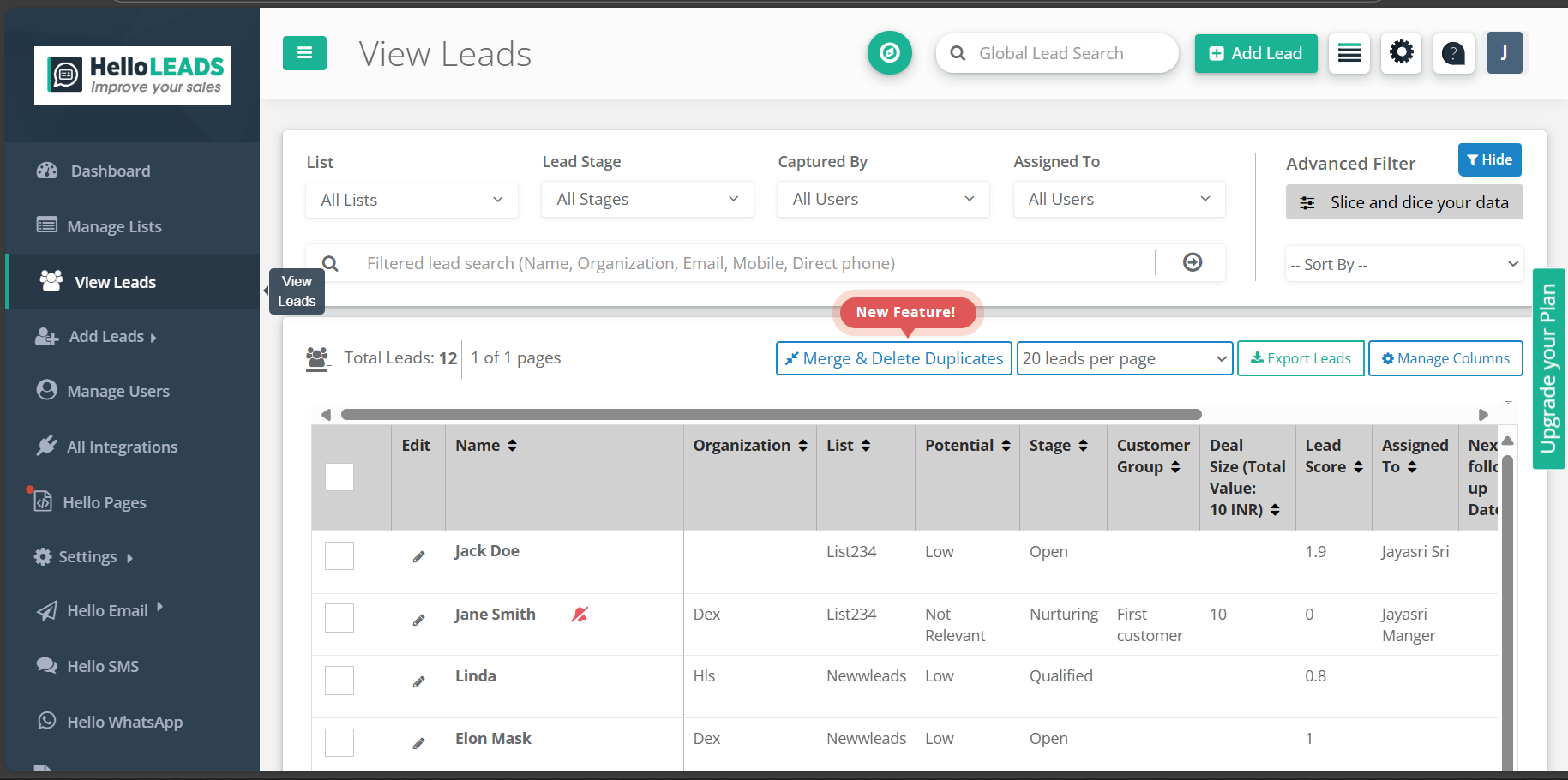
Select Leads
Go to the View Leads page and choose the leads you want to update.
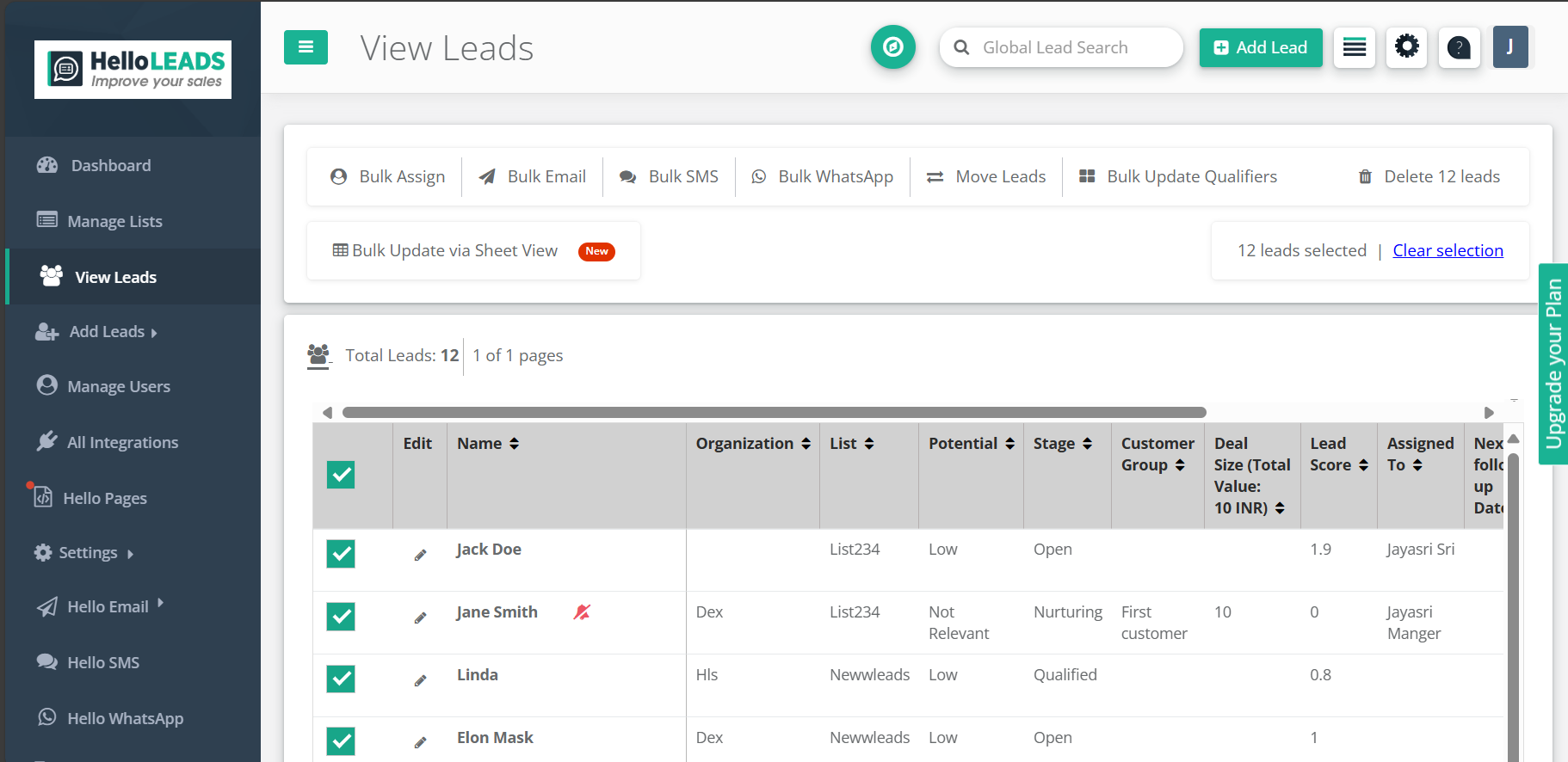
Open Sheet View
Click the Bulk update via sheet view button to open the sheet interface.
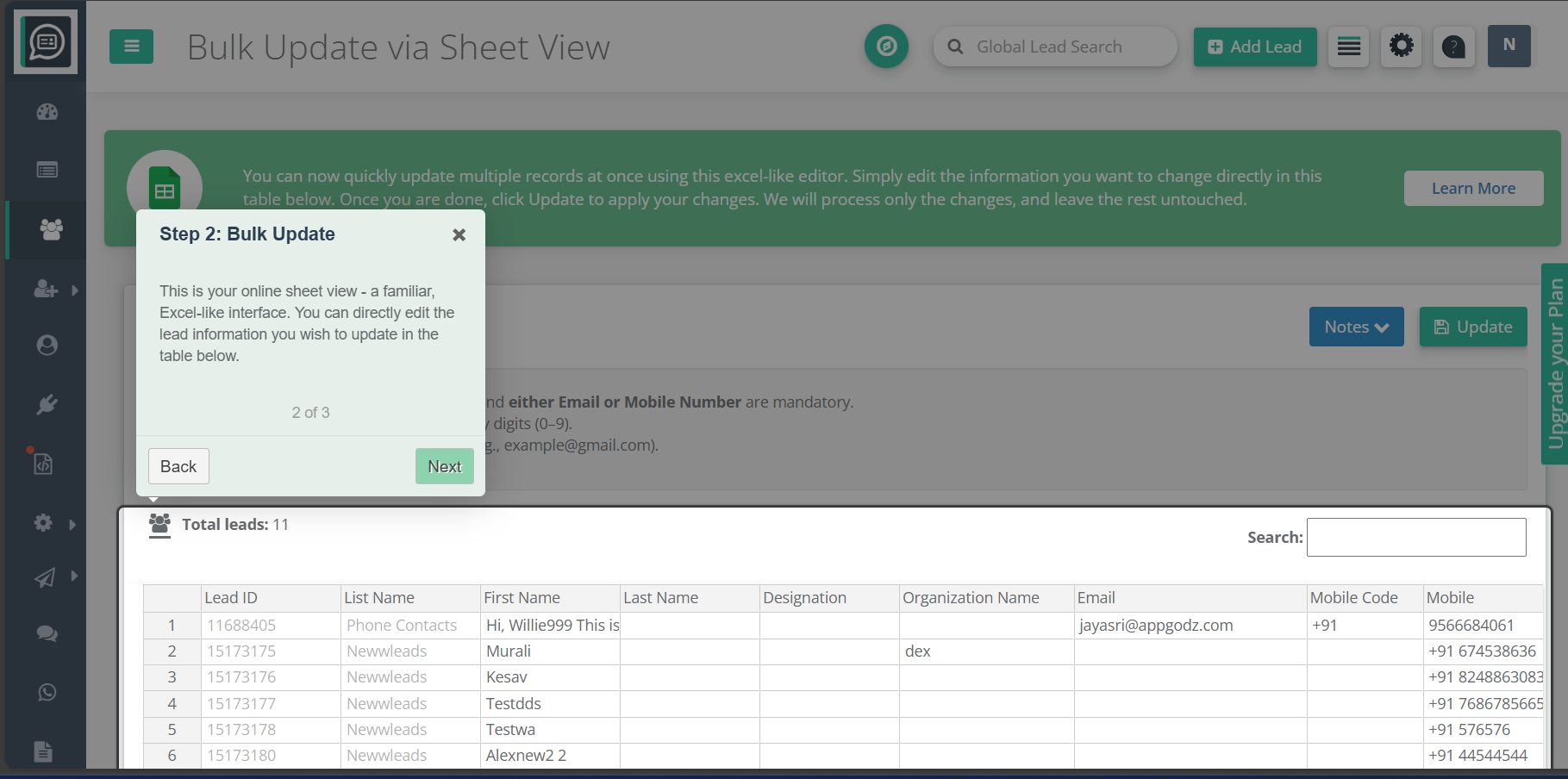
Edit Cells
Click any cell to update a field. Edit single cells, entire rows, or multiple rows as needed.
Single Column Edit
Focus on one column to update the same field for many leads quickly.
Drag & Drop Data
Rearrange data within rows by dragging and dropping values. Organize information quickly.
Sort Columns
Double-click a column header to sort leads by that field (name, phone number, etc.).
Undo Edits
If you make a mistake, press Ctrl + Z to undo changes before saving.
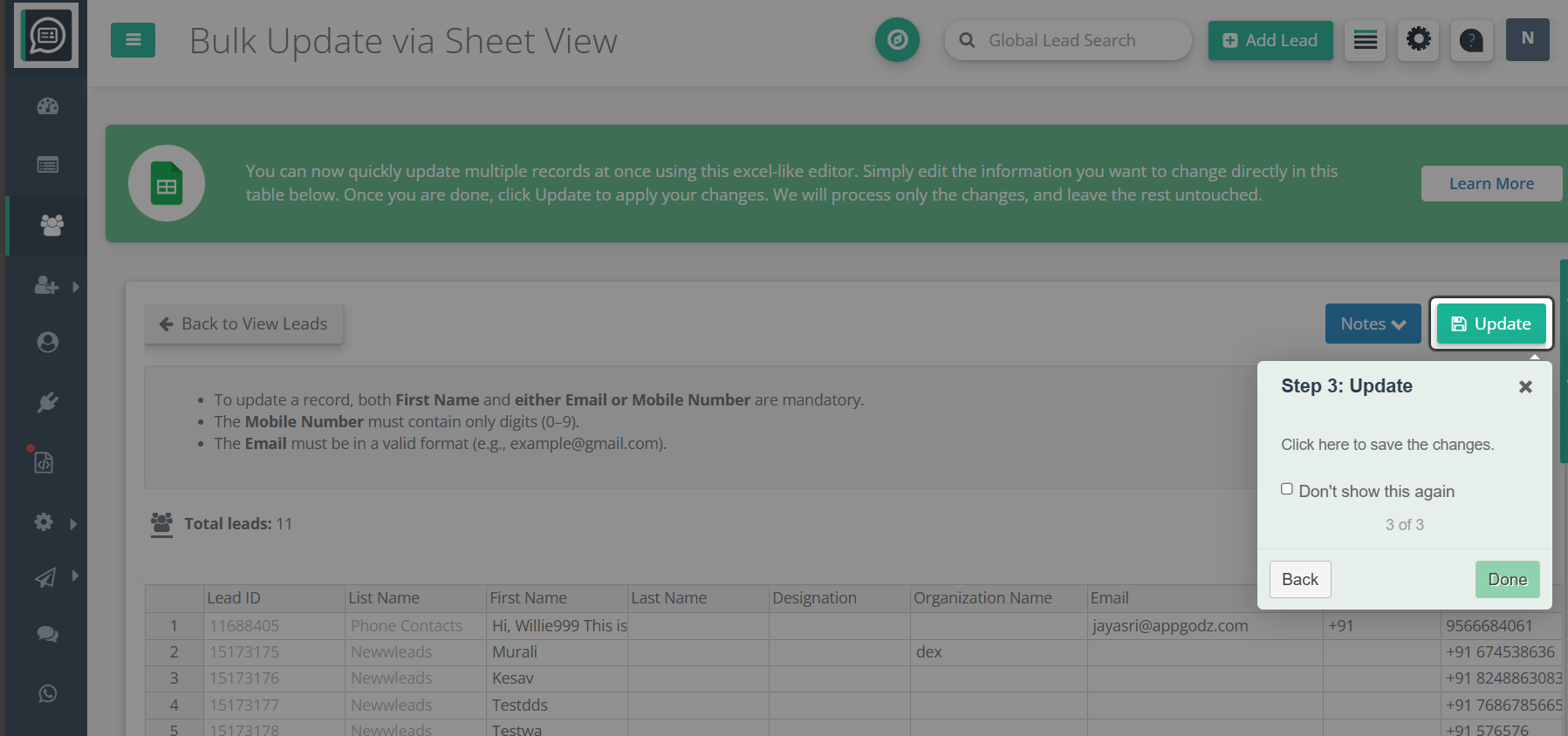
Save Changes
When done, click Update to save all selected leads at once.
Why You'll Love It
Save Time
Update dozens or hundreds of leads in minutes instead of hours.
No Technical Skills Needed
The interface is simple and familiar, just like a spreadsheet.
Stay Organized
See all your lead data in one place and keep information up to date.
Safe & Secure
Changes are only updated when you confirm, so you stay in control.
Boost Productivity
Focus on what matters most—building relationships and closing deals!