📄How to Create Your First Sales Order
Step-by-Step Tutorial - Create professional sales orders in minutes
Available in
1
Getting Started: Access Sales Orders
Let's start by navigating to the Sales Order section in your HelloLeads CRM dashboard. Don't worry if you're new - we'll walk through every single step!
Log into your HelloLeads CRM account - Web app
Look for the navigation menu (usually on the left sidebar)
Click on "Manage Sales Orders" in the menu
You should now see the Sales Order dashboard screen
🔥 Before You Begin - Quick Checklist
- Make sure you have at least one lead/ customer - You'll need to select a lead/ customer for the order
- Check if products are added - You'll want some products/services to add to the order
- Don't panic if it looks complex- We'll fill only the essential fields to start
- You can always edit later - Nothing is permanent, so feel free to practice!
2
Understanding What You See
Great! You're now on the Sales Order dashboard. Let's take 30 seconds to understand what you're looking at before we create your first order.
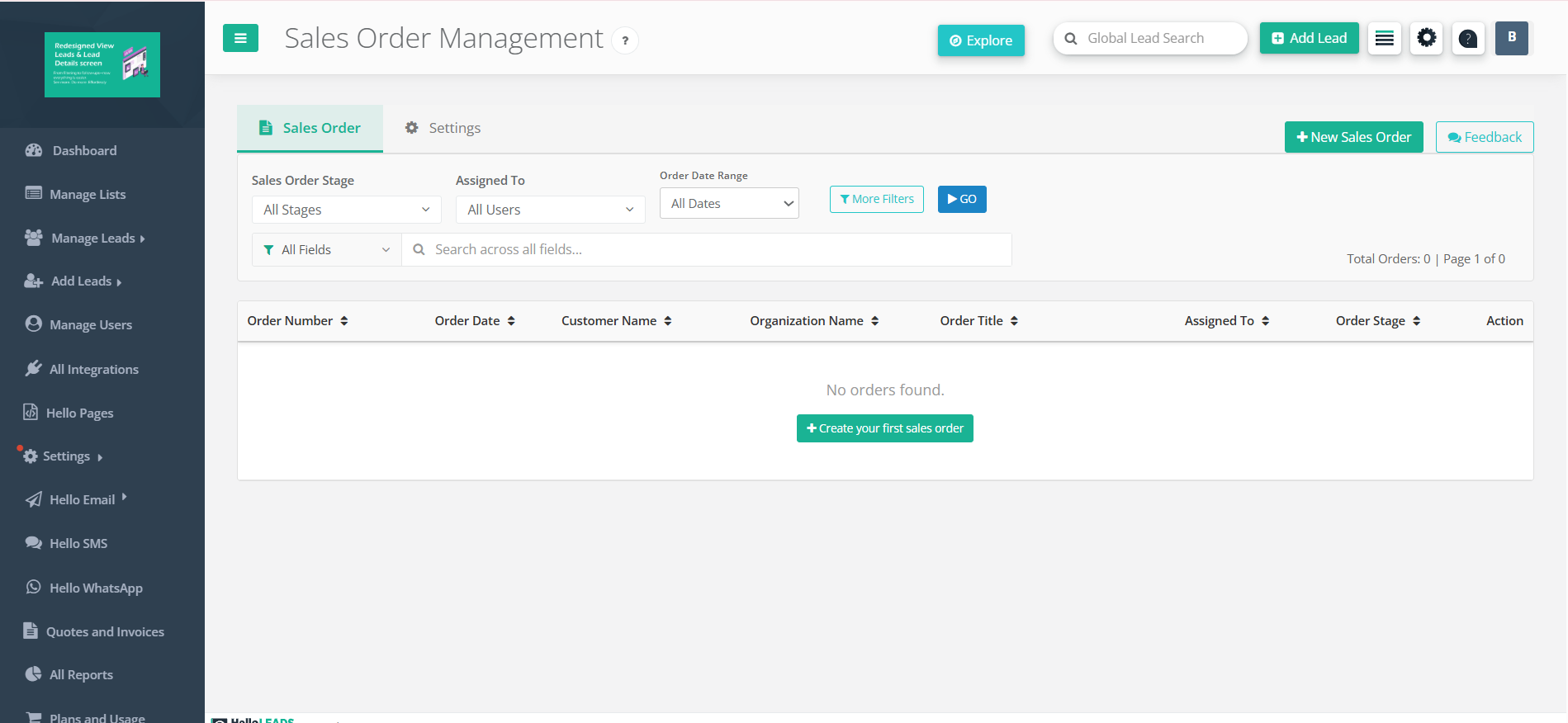
Look for the "+ New Sales Order" or " Create your first sales Order" button
See the table showing existing orders (may be empty if you are new)
Notice the search and filter options (we will use these later)
Orders show: Number, Customer, Date, Amount, Stage (New/Processing/etc.)
3
Creating Sales Orders
Generate professional sales orders for your customers with comprehensive order management. Create detailed orders with line items, customer information, and delivery requirements through the web platform.
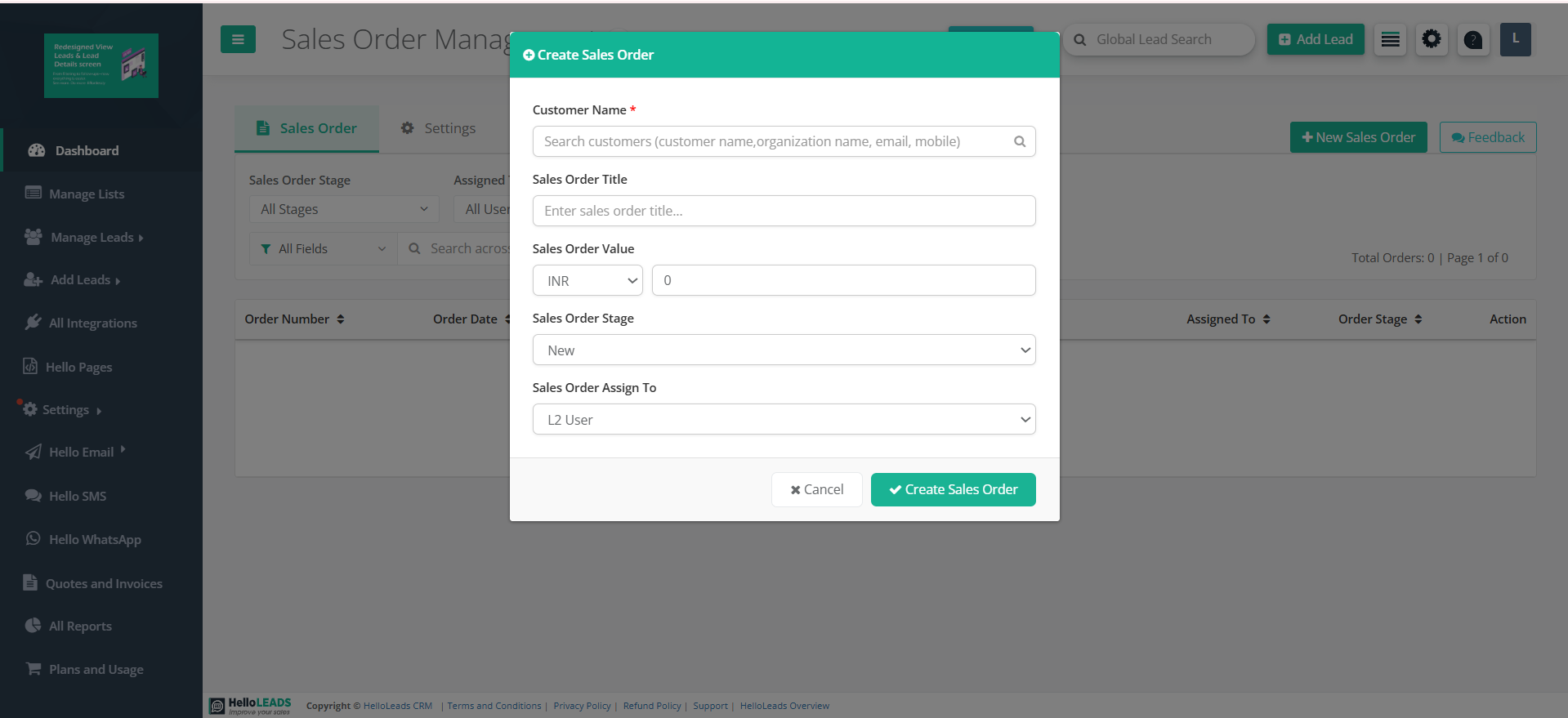
Step 3.1: Click the green "+ Add New Order" button
Step 3.2: A form will pop up or open - this is your order creation form
Step 3.3: Search and Select customer details
Step 3.4: Enter Sales Order title, value, select stage and Assign To user
Adding Products/Services
Look for:
• "Add Product" or "Add Item" button
• "Line Items" tab
Action: Click "Add Product" → Select from catalog → Enter quantity → System auto-calculates price
• "Add Product" or "Add Item" button
• "Line Items" tab
Action: Click "Add Product" → Select from catalog → Enter quantity → System auto-calculates price
4
Sales Order Table View & Navigation
The main dashboard provides a comprehensive overview of all your sales orders with powerful management capabilities. Access all your orders from a single, organized web interface with advanced filtering and search options.
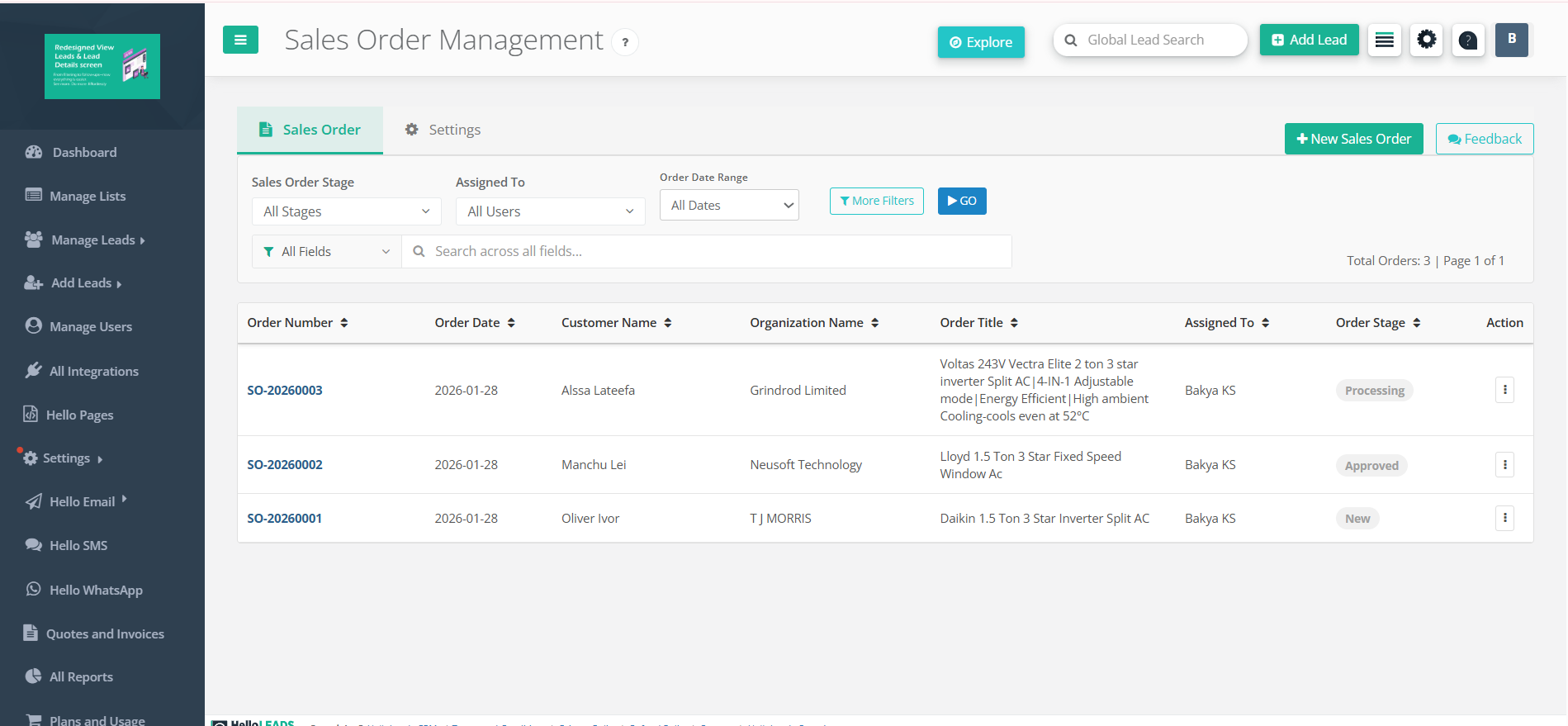
View all orders in organized table format
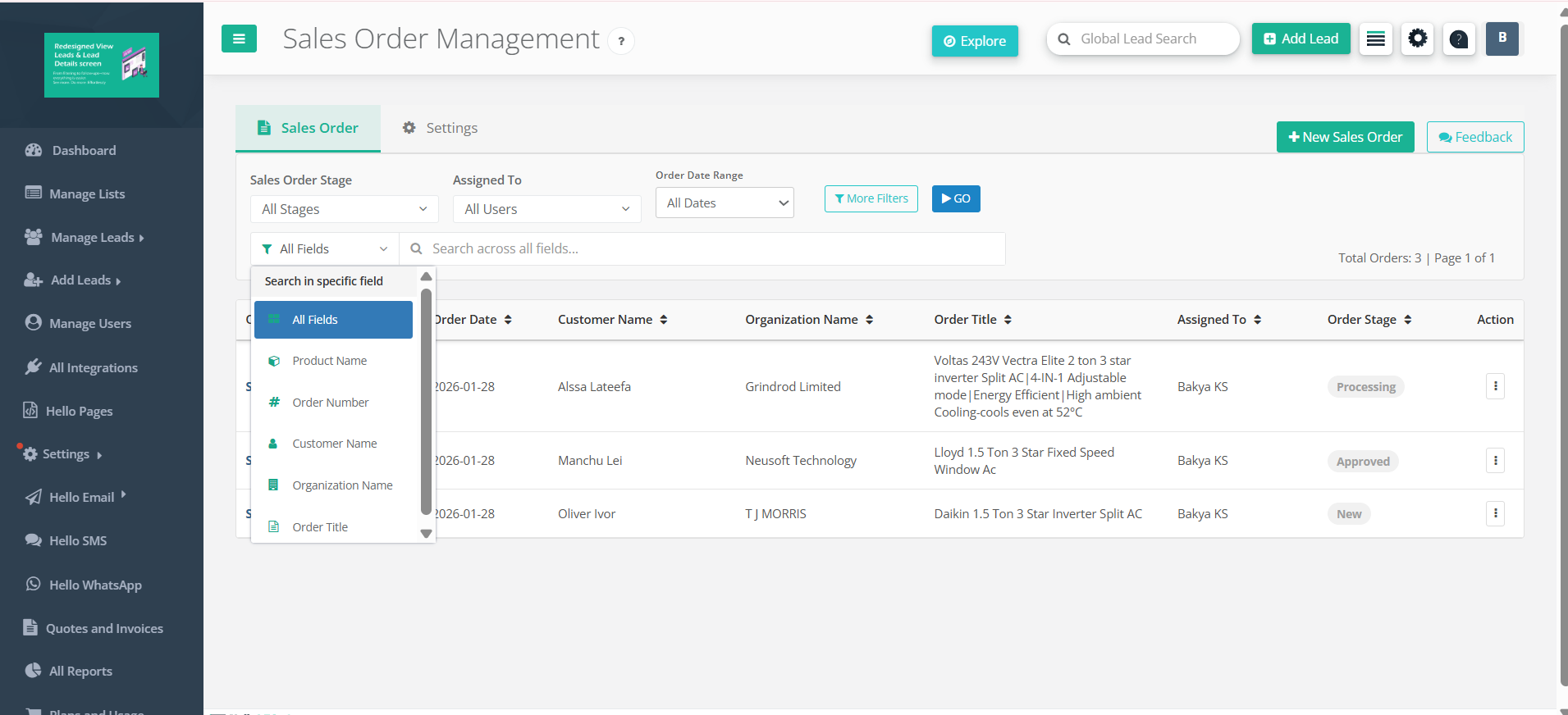
Filter by Stage, Assigned User, Date Range
Search across all fields instantly
Sort by order number, date, customer, value
5
Adding Products & Calculating Totals
Now comes the exciting part - adding products to your order! This is where you will see the power of automated calculations.
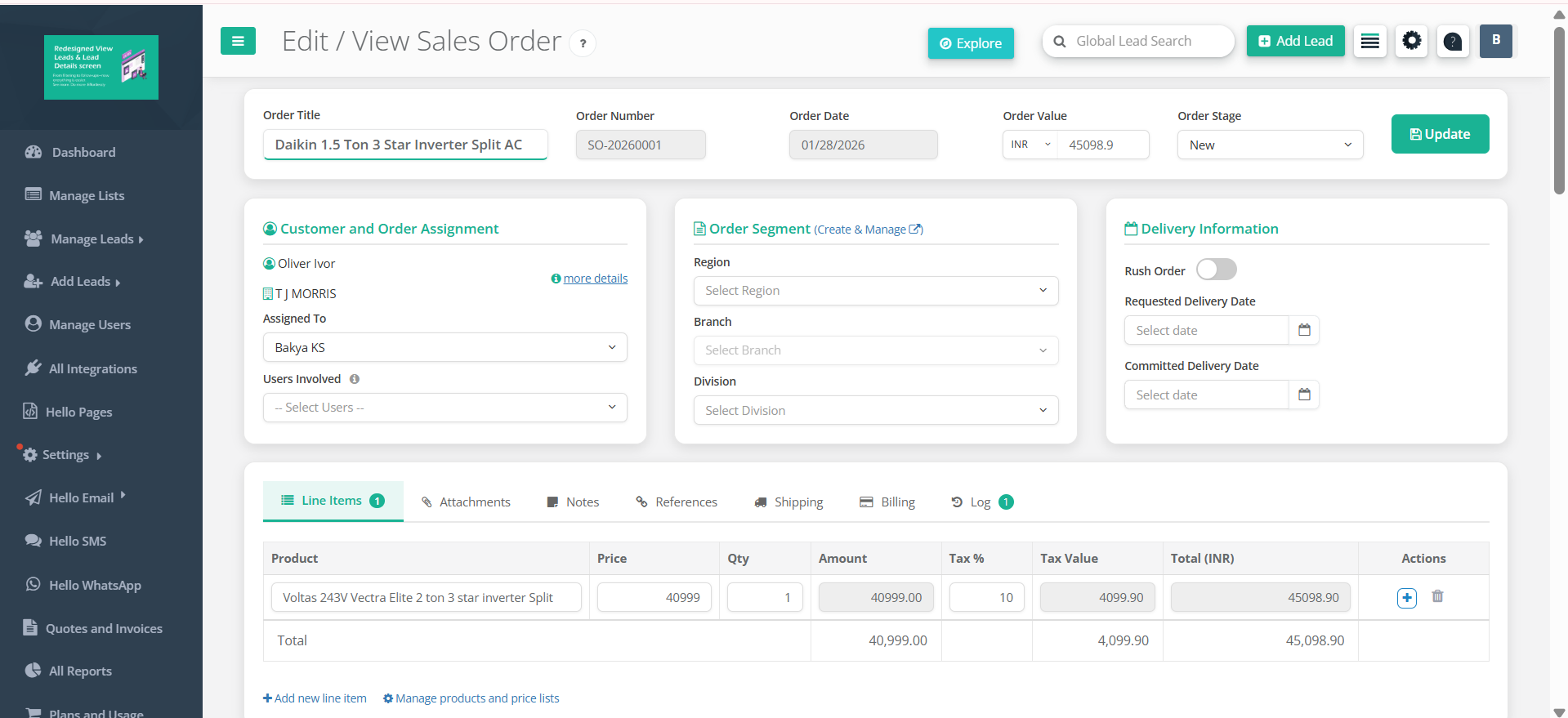
Step 5.1:Look for "Line Items" section
Step 5.2: Search and Select product → Enter quantity → Watch the magic happen!
Step 5.3: System auto-calculates: Amount, Tax Value, Total
Usually editable
• Product/service selection
• Quantity (number of items)
• Unit price (if you have permission)
• Product description/notes
• Quantity (number of items)
• Unit price (if you have permission)
• Product description/notes
System calculates
• Line total (quantity × price)
• Subtotal (all line totals)
• Tax amount
• Grand total (subtotal + tax)
• Updates in real-time!
• Subtotal (all line totals)
• Tax amount
• Grand total (subtotal + tax)
• Updates in real-time!
🎉 Success! What You Just Created
Order Number Generated
System automatically assigns a unique order number (like ORD-001234) that you can use to reference this order forever.
Status Set to "New"
Your order starts with "New" status. Later you can change this to "Approved," "Processing," "Shipped," etc.
Edit sales order
Don't worry if something's wrong! You can always click on the order later to edit add/remove products, or update details.
References Tab
Link related business documents including quote numbers, PO numbers, invoice references, and custom tracking fields..
Shipping Tab
Complete logistics management with rush order flags, delivery scheduling, address management.
Billing Tab
Payment and billing configuration with address management.
Activity Log Tab Auto-Track
Complete logistics management with rush order flags, delivery scheduling, address management.
Tab Organization Best Practices
- Use Line Items tab to manage products, quantities, pricing, and discounts
- Upload supporting documents regularly in Attachments tab
- Add internal notes for team communication and customer notes for transparency
- Include reference numbers (PO, Quote, Invoice) for easy cross-referencing
- Set rush orders and delivery dates in Delivery Information
- Configure billing addresses
- Review Activity Log regularly for compliance
- Use consistent data entry across all tabs for better organization
6
Advanced Features & Productivity Tips
Maximize productivity with advanced filtering, stage management, team collaboration, and integration features that streamline your sales order workflow and improve team coordination.
Smart Filtering System
Filter sales orders by date range, creator, order stage, customer, and search terms. Advanced filtering saves time when managing large order datasets.
Team Collaboration
Track which team member created each order, assign ownership, and filter by user for better organization and accountability.
Stage Management Automated
Progress orders through defined stages (New → Approved → Processing → Shipped → Delivered) with visual tracking and automatic logging.
Web Access
Access and manage orders from any web browser with full functionality for office and remote team members.
Auto-Calculations
Automatic calculations for line items, discounts, taxes, and order totals with real-time updates and currency formatting.
Complete Audit Trail
Comprehensive activity logging tracks all changes, user actions, and system events for compliance and troubleshooting.
Pro Tips for Maximum Success
- Use advanced filters to quickly locate specific orders by stage, customer, or date range
- Assign orders to team members for clear accountability and follow-up
- Set up consistent numbering schemes for easy tracking and professional appearance
- Upload relevant documents (contracts, specifications) in Attachments tab
- Use internal notes for team communication and customer notes for transparency
- Monitor order progression through stages for better delivery planning
- Use web browser access for remote order management from any location
- Review activity logs regularly for performance insights and compliance
- Include reference numbers (PO, Quote) for easy cross-system tracking
Workflow Optimization Tips
- 🔄 Stage Management: Use defined stages to track order progress and automate notifications
- 📊 Data Organization: Use consistent naming conventions and categorization for better reporting
- 🎯 Assignment: Assign orders to specific team members for clear ownership and follow-up
- 🌐 Web Efficiency: Access from any web browser for remote sales and client management
- 🔍 Search & Filter: Use advanced search and filtering to quickly find specific orders