 HelloLeads CRM Quotes & Invoices
Complete User Guide - Master the art of professional quote and invoice management
Available in
1
Initial Setup & Configuration
Before creating quotes and invoices, configure your organization settings, tax information, and branding to ensure professional documents that represent your business perfectly.
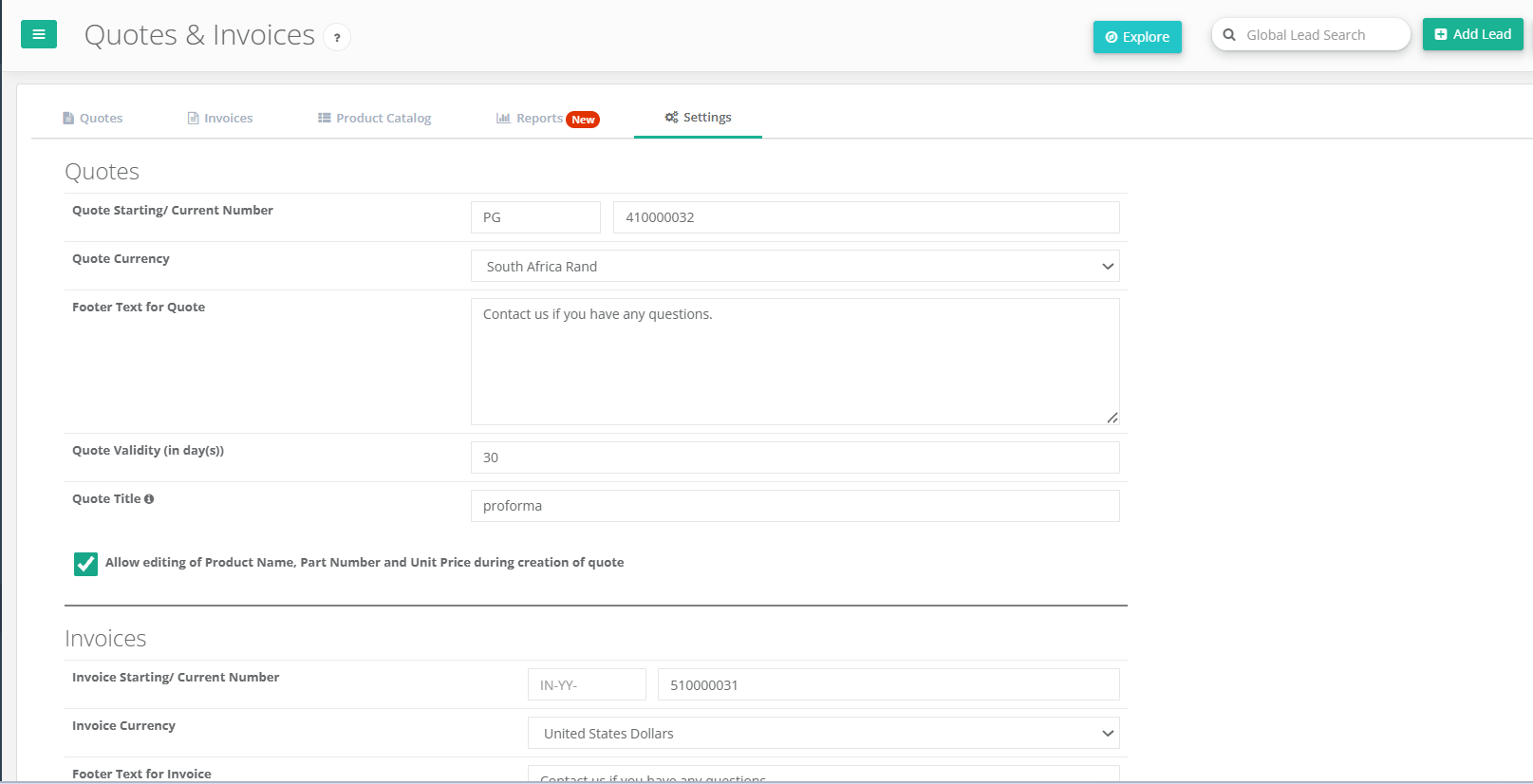
Navigate to Settings tab
Configure organization details
Set up tax rates and labels
Upload company logo & signature
Set default currency
Enable / Disable option to edit price
Setup Best Practices
- Set up your quote and invoice numbering format (e.g., QT-2024-, INV-2024-)
- Configure default currency for your region
- Add payment terms and footer text for professional appearance
- Upload high-quality logo (recommended size: 300x100px)
- Set appropriate tax percentages for your jurisdiction
- Include your business registration and tax numbers
2
Build Your Product Catalog
Create a comprehensive product catalog to quickly add items to quotes and invoices. This saves time and ensures consistency across all your documents.
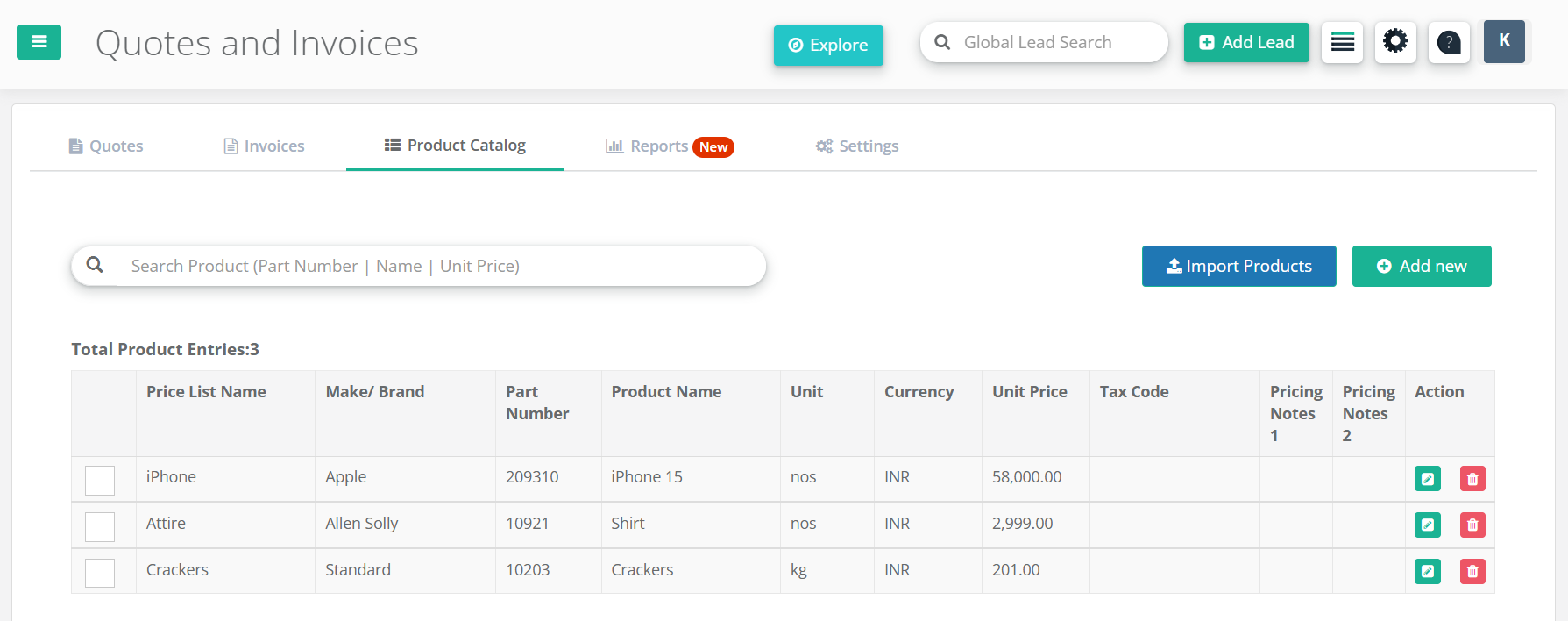
Go to Product Catalog tab
Add individual products or bulk import
Set pricing and tax codes
Organize with categories and descriptions
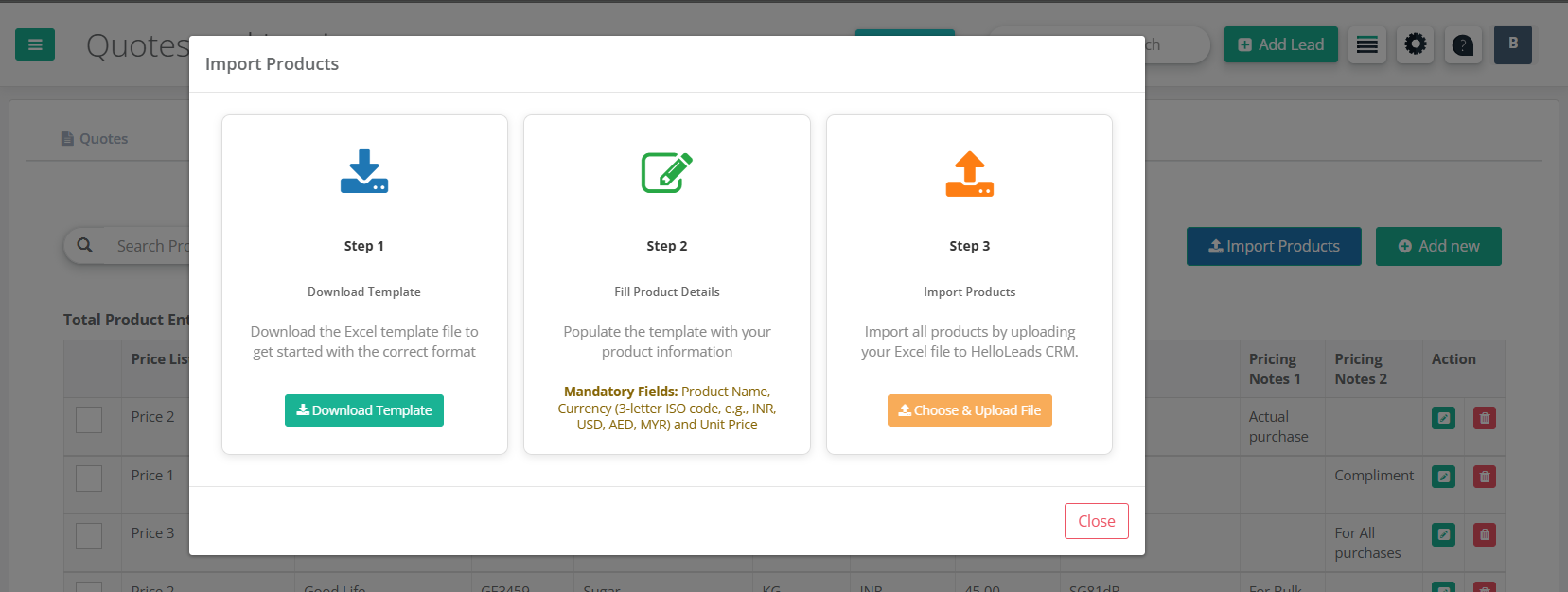
Bulk Import Excel
Download template, fill product details, and import hundreds of products at once. Supports Excel (.xlsx) format for easy data management.
Complete Product Details
Include part numbers, descriptions, pricing, tax codes, vendor information, and pricing notes for complete product tracking.
Smart Search & Filter
Quickly find products by name, part number, or price when creating quotes and invoices. Advanced filtering options available.
3
Creating Professional Quotes
Generate professional quotes for your leads from multiple access points across web and mobile platforms. Create impressive documents that win more business.
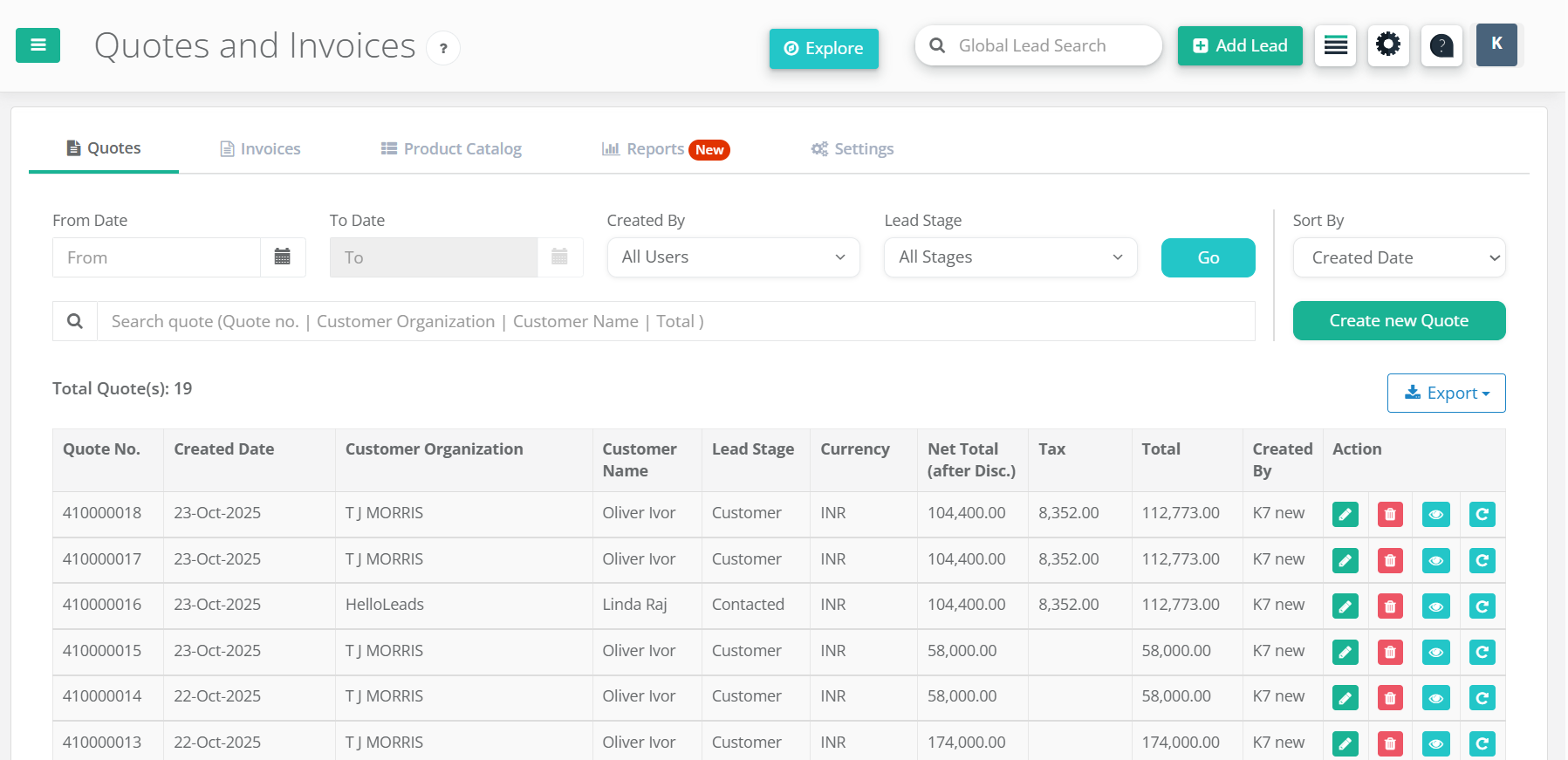
Web Platform
Mobile App
From Main Menu → Quotes & Invoices
From Lead Details → Quotes & Invoices
- Select the lead / customer to whom the quote need to be created
- Click "Add products" to add your items from your catalog
- Modify the product name, part number, price ( if needed)
- Provide Product description
- Provide the quantity needed and click "Add"
- Provide the Discount, Tax %, Additional cost ( optional)
- Review the quote and save it.
Open HelloLeads CRM Android App
Navigate to Lead Details
Tap "Quotes & Invoices"
Create new quote on-the-go
Share instantly with customers
4
Edit Existing Quotation
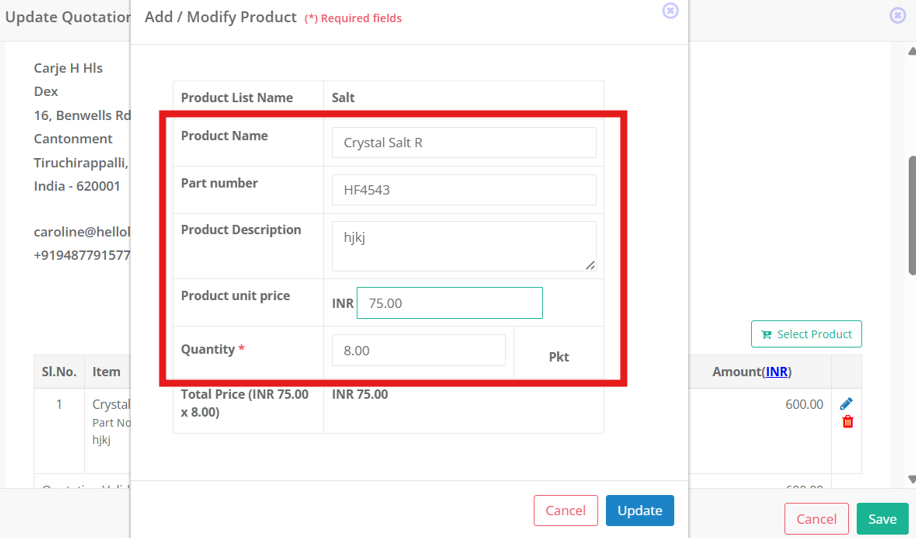
- From Main Menu → Quotes & Invoices
- Under the Quotes tab, click the Edit icon across the quotation you want to update
- Modify product name, part number, price, description, and quantity
- Update Discount, Tax %, Additional cost if required
- Review the changes carefully and save the quotation
Quote Best Practices
- Add detailed product descriptions and specifications
- Include quantity discounts when applicable
- Set realistic validity periods (typically 15-30 days)
- Preview before sharing to ensure professional appearance
- Include clear payment terms and conditions
- Add contact information for quick follow-up
- Use consistent branding across all documents
5
Invoice Management & Payment Tracking
Convert quotes to invoices and track payment status efficiently across all platforms. Maintain cash flow with professional invoice management.
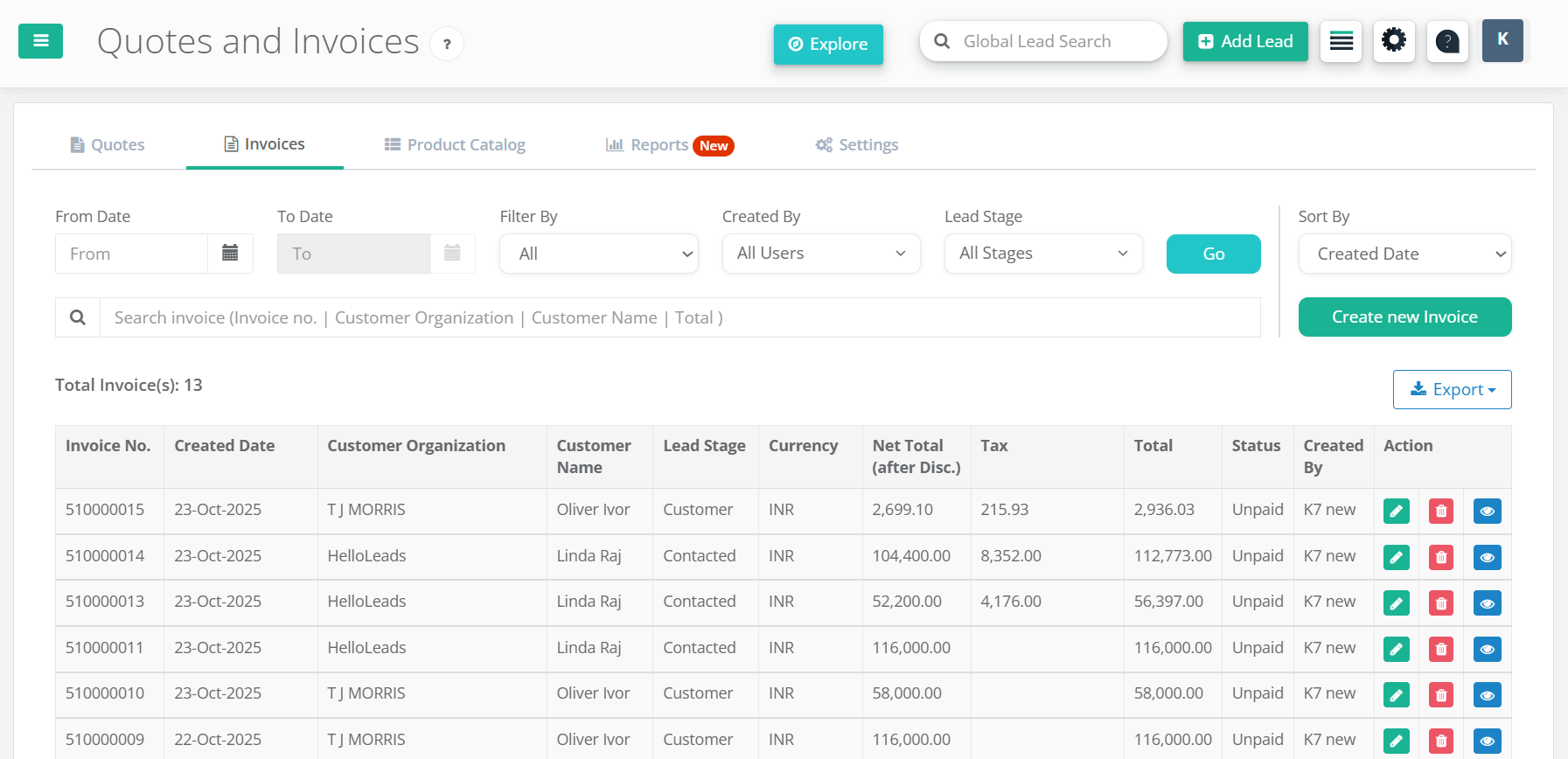
Web Platform
Mobile App
Convert accepted quotes to invoices 1-Click
Create new invoices directly
Track payment status (Unpaid/Partial/Paid)
Access invoices on mobile device
Update payment status on-the-go
Share invoices instantly with clients
Payment Status Tracking
Monitor unpaid, partially paid, and fully paid invoices with visual status indicators.
Multiple Export Options
Export invoices as Excel files or download multiple PDFs as ZIP for easy sharing and record-keeping.
6
Reports & Business Analytics
View comprehensive reports to track product sales, and make data-driven decisions with detailed analytics and visual insights.
Navigate to Reports section
Apply filters: Date range, User
Analyze sales performance & trends
Review detailed data insights
📊 Report Types Available
Quote Reports
Comprehensive analysis of all quotes with product-wise breakdowns, user performance tracking, and detailed analytics dashboard.
Invoice Reports
Complete invoice analytics including payment status tracking, and detailed product performance metrics.
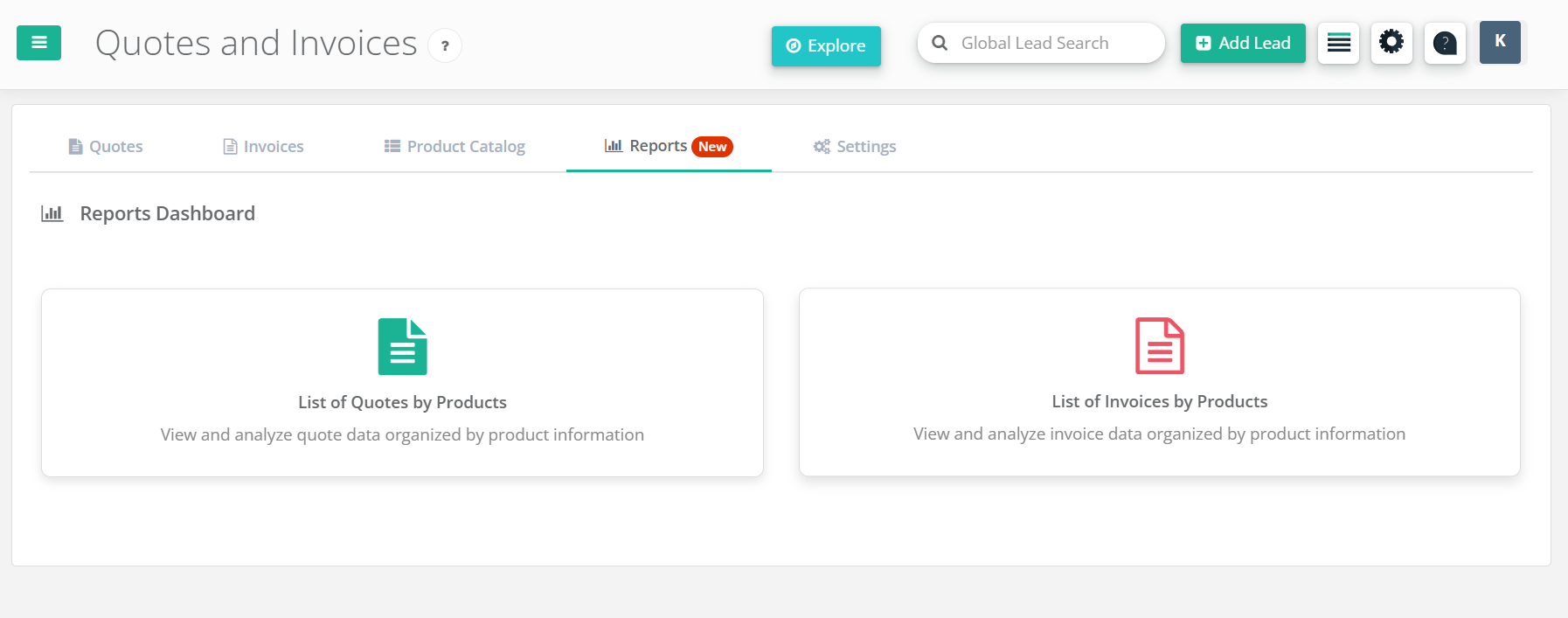
Quotes by Products Reports
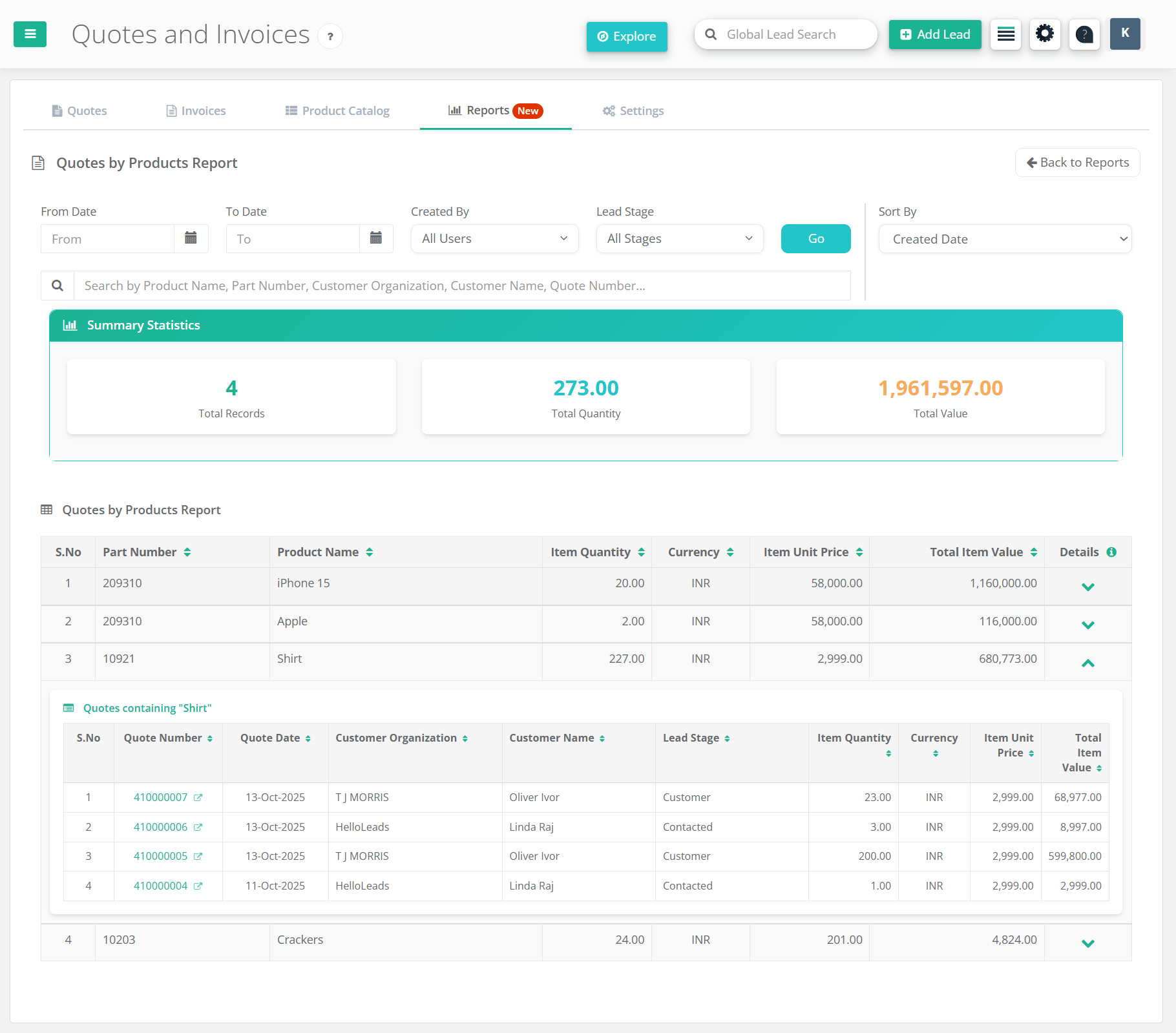
Invoices by Products Reports
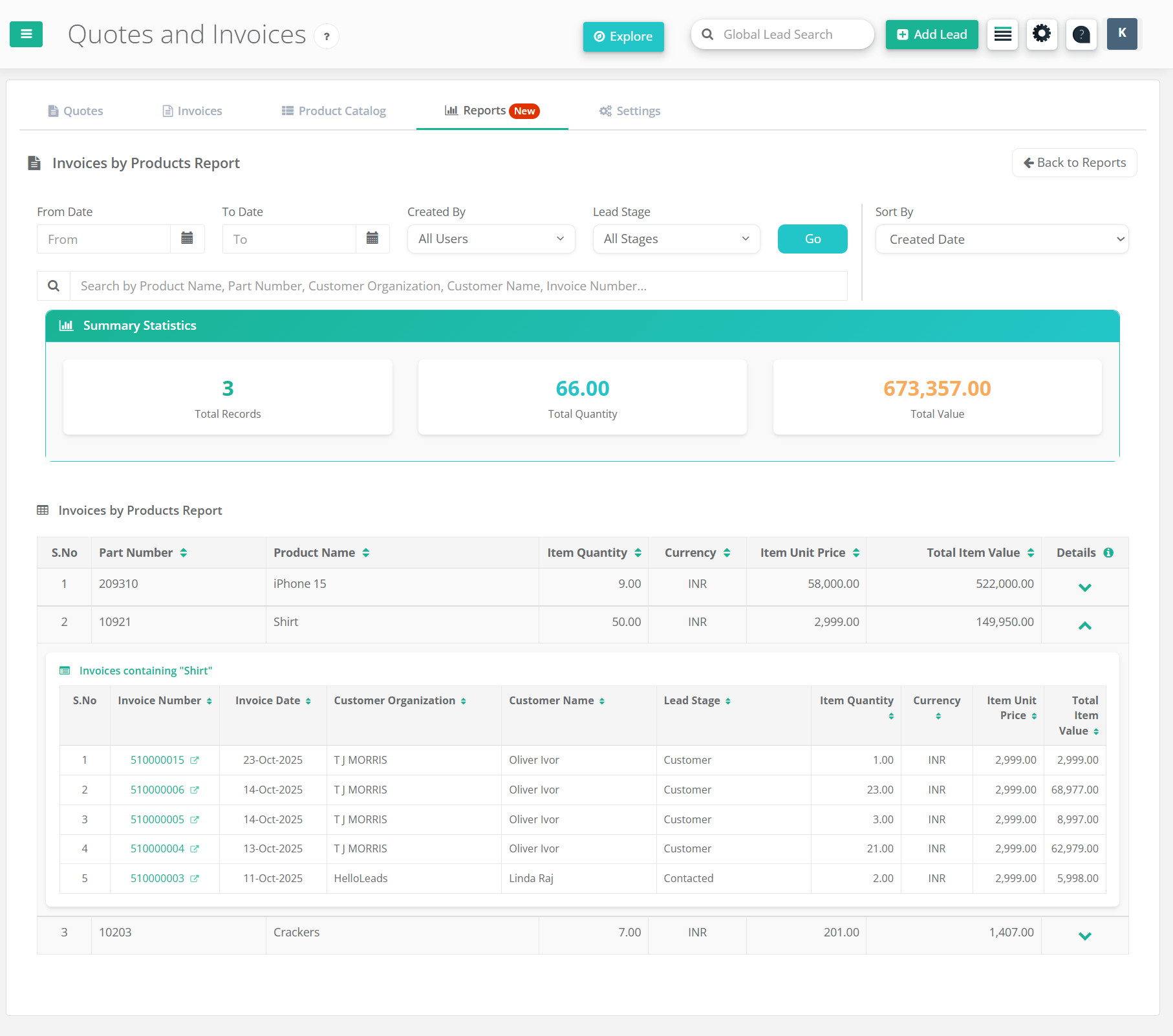
🎯 Key Features & Benefits
User Performance Tracking
Track which team members are creating quotes and invoices, with user names clearly displayed.
Flexible Date Filtering
Generate reports for any date range with accurate timezone handling and professional date formatting.
Currency & Data Display
Professional data presentation with clear currency formatting and consistent styling for easy reading and analysis.
Smart Sorting & Organization
Products automatically sorted alphabetically with advanced filtering options for easy data navigation and analysis.
Reports Best Practices
- Use date filters to focus on specific time periods for accurate insights
- Review product performance data regularly for quick business overview
- Filter by user to track individual team member performance
- Utilize filtering options to drill down into specific data segments
- Monitor key metrics and trends for better business decisions
- Compare data across different time periods to identify patterns
- Review detailed analytics for strategic planning purposes
- Use reports to track sales performance and revenue trends
7
Advanced Features & Productivity Tips
Maximize productivity with advanced filtering, bulk operations, multi-user support, and integration features that streamline your workflow.
Smart Filtering System
Filter quotes and invoices by date range, creator, lead stage, status, and search terms. Advanced filtering saves time when managing large datasets.
Multi-User Collaboration
Track which team member created each quote or invoice. Filter by user for better organization and accountability.
Quote to Invoice Conversion
Seamlessly convert accepted quotes to invoices with one click, maintaining all product details and pricing information.
Bulk Operations
Export multiple documents as ZIP files, and manage large datasets efficiently with bulk operations.
Date Range Filtering
Filter documents by custom date ranges, view reports for specific periods, and track performance over time.
Cloud Sync & Access
Access your quotes and invoices from anywhere with cloud synchronization across web and mobile platforms.
Pro Tips for Maximum Success
- Add detailed product descriptions and specifications
- Regularly update your product catalog with current pricing and specifications
- Use consistent numbering schemes for easy tracking and professional appearance
- Set up automated follow-up reminders for overdue invoices
- Keep your company branding consistent across all documents
- Export data regularly for backup and comprehensive reporting
- Train team members on mobile app features for effective field operations
- Use detailed product descriptions to reduce customer queries
- Set appropriate quote validity periods to encourage quick decisions
Workflow Optimization Tips
- 🔄 Automation: Use quote-to-invoice conversion to eliminate duplicate data entry
- 📊 Reporting: Export data regularly for performance analysis and accounting
- 🎯 Organization: Use consistent naming conventions and categorization
- 📱 Mobile Access: Leverage mobile app for field sales and client meetings
- 🔍 Search: Use advanced search and filtering to quickly find specific documents