How to Access Plans & Usage and Create a New Subscription in HelloLeads CRM
A step-by-step guide to navigating the Android app menu, viewing account usage, selecting plans, and completing secure checkout.
Managing your subscription and scaling your team on the go is easy with the HelloLeads CRM Android app. This guide walks you through opening the side navigation menu, accessing the Plans and Usage screen to review your current account status, selecting your desired subscription tier and user count, verifying international payment settings, and completing your payment securely.
Upgrade, renew, or view current usage on Android anytime.
Monitor lead counts, user limits, and plan expiration live.
Ensure seamless card checkout with international support.
Encrypted checkout supporting Card and Cash App Pay.
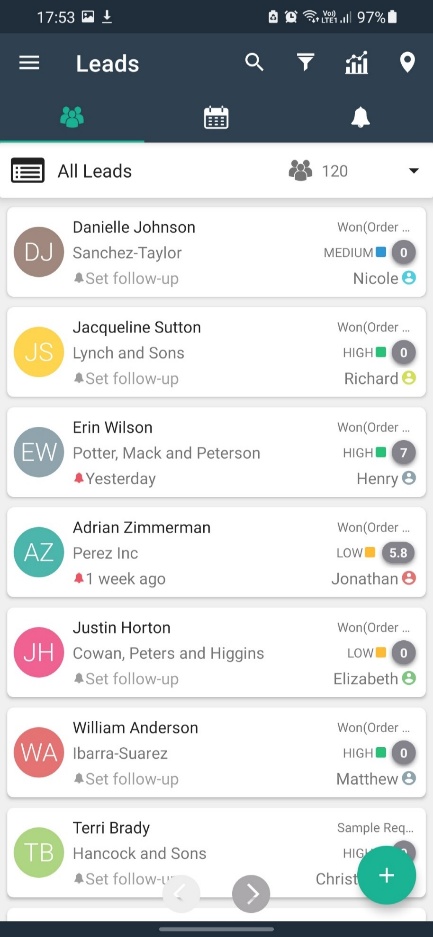
Open the HelloLeads CRM App
Launch the HelloLeads application on your Android smartphone or tablet.
- 1 Open the HelloLeads CRM app on your Android device.
- 2 Once the app is open, tap the three horizontal lines (☰ hamburger menu icon) in the top-left corner of the screen.
Access Plans and Usage
Navigate to your account subscription hub from the Android drawer menu.
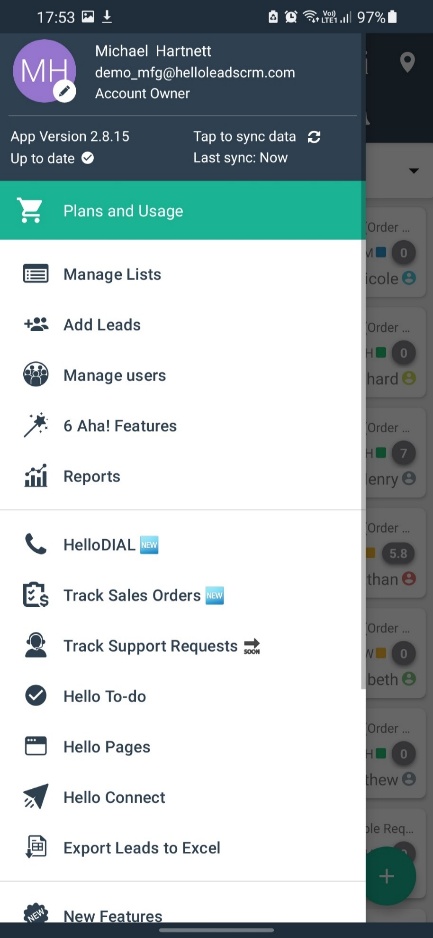
- 1 In the side menu drawer, scroll down through the list of navigation options.
- 2 Tap on the Plans and Usage option.
Review Account Details & Tap Upgrade/Renew
Inspect your current license utilization and proceed to the plan renewal screen.
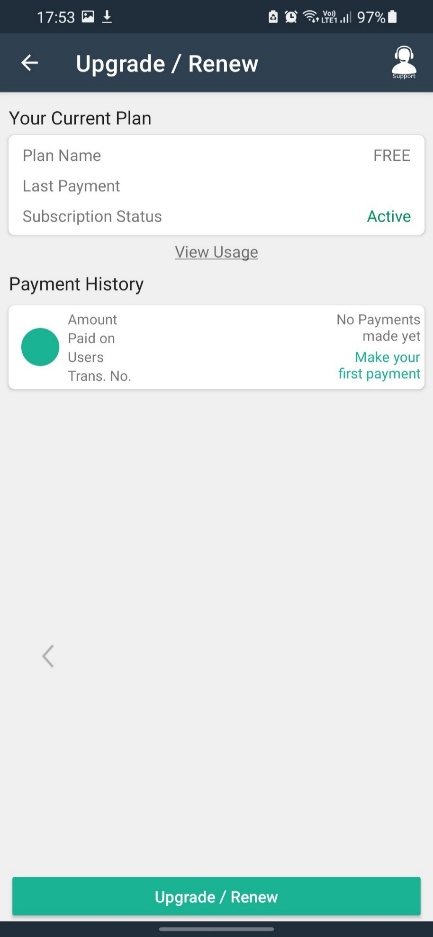
- 1 You can now find the details of your account on this screen, including current plan tier, active user licenses, and validity.
- 2 At the bottom of the screen, locate and click the Upgrade/Renew button.
Select Your Plan and Number of Users
Select the ideal CRM plan tier and license seats tailored to your team.
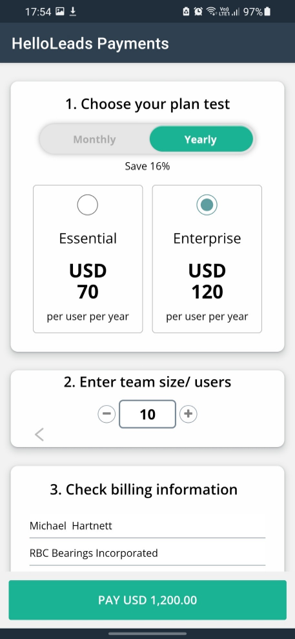
On the Upgrade or Renew Your Account page, review the available subscription plans:
- 1 Select Plan: Review available plan tiers and select your desired plan based on your business requirements.
- 2 Choose Users: Choose the required number of user seats for your account.
- 3 Review Pricing: Review the selected plan, number of users, and applicable subscription charges before proceeding.
Enable International Payments on Your Card
Ensure your payment method is ready for international online gateway processing.
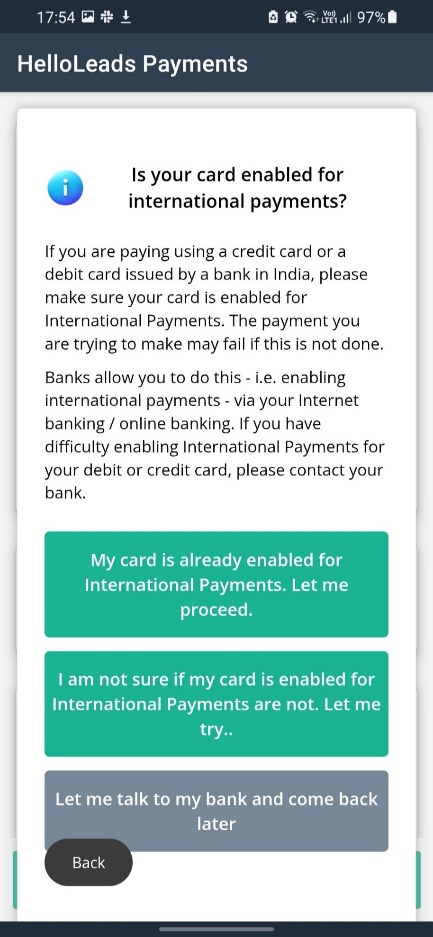
- 1 Before making the payment, ensure that your debit or credit card is enabled for international online transactions.
- 2 If international payments are disabled, please enable them through your bank's mobile app, internet banking portal, or by contacting your issuing bank.
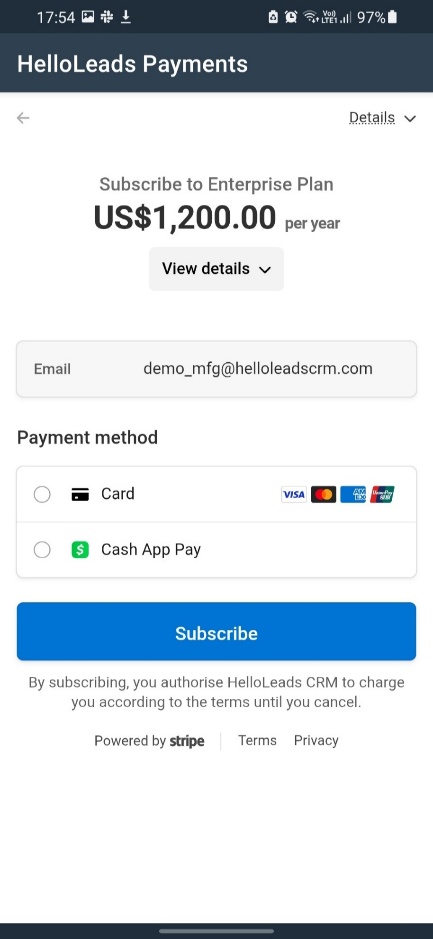
Complete Subscription & Payment Checkout
Finalize your transaction on Stripe Checkout to activate your subscription on Android immediately.
- 1 Select Payment Method: Choose your preferred payment option — Card (Credit / Debit Card) or Cash App Pay.
- 2 Enter Payment Details: Input your card number, expiration date, CVC code, and cardholder name.
- 3 Review Summary: Review the payment information and recurring billing terms to ensure all details are correct.
- 4 Subscribe: Click Subscribe to complete the payment and activate your subscription.